 ImaraISP
Sign in and create a workspace
Your tenant URL, staff sign-in, lockouts, password reset, the workspace chooser and starting a new ISP workspace
Your tenant URL
Everyone signs in at app.imaraisp.ke. After sign-in you land in your workspace at app.imaraisp.ke/t/yourisp; the demo workspace Coastlink ISP lives at app.imaraisp.ke/t/coastlink. Bookmark your workspace page: opening it while signed in takes you straight there, and opening it signed out brings you back to it after sign-in. An old yourisp.app.imaraisp.ke bookmark is redirected to the new address.
Subscribers do not sign in here. They use the captive portal at portal.imaraisp.ke/yourisp and their own account area at portal.imaraisp.ke/yourisp/my. The sign-in page reads "Staff and resellers. Subscribers sign in here." and that link takes them there.
Sign in as staff
Staff and resellers sign in with email and password. Phone codes are for subscribers on the portal, not for staff.
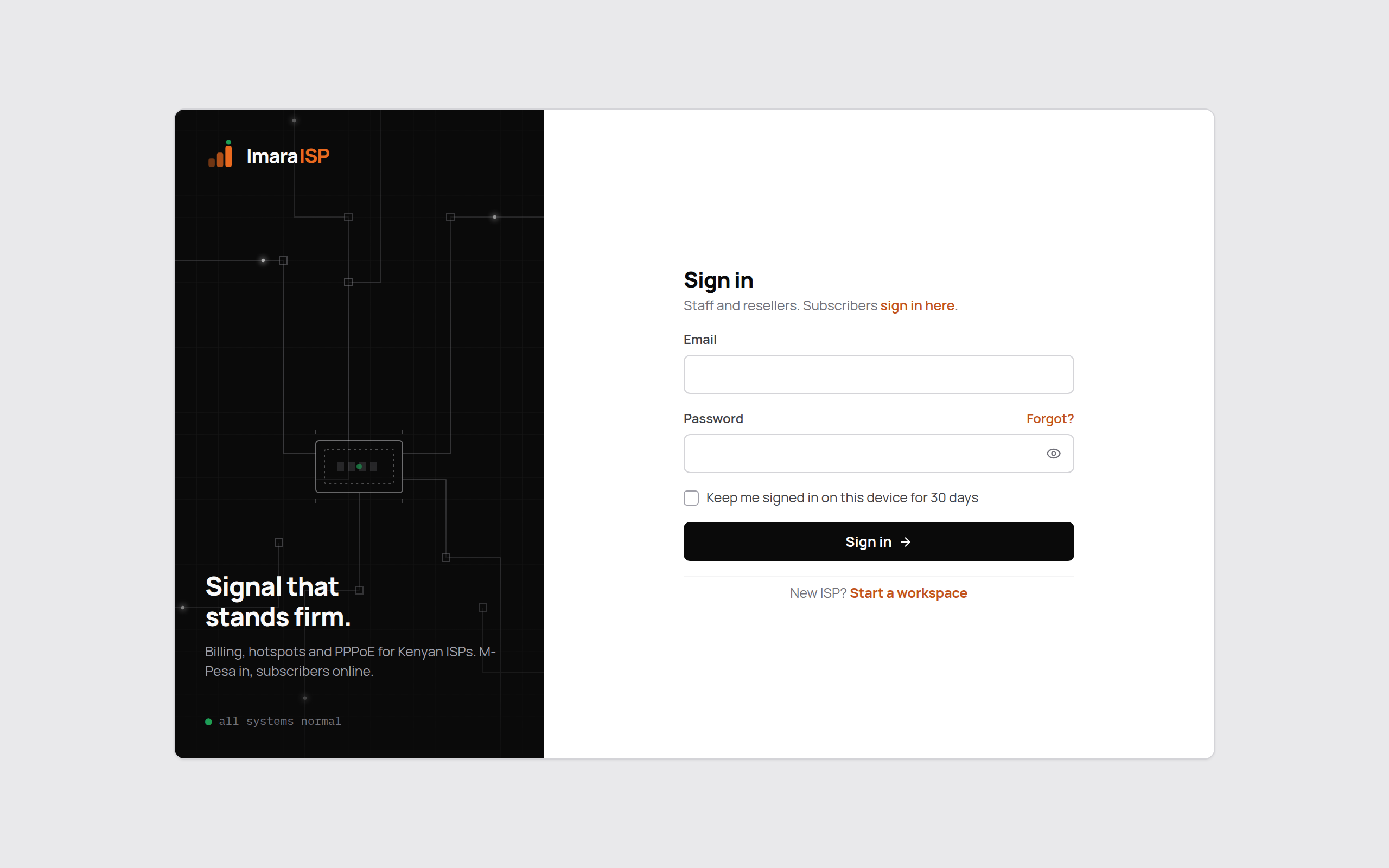
Open app.imaraisp.ke
Go to app.imaraisp.ke. You land on Sign in, subtitled "Staff and resellers. Subscribers sign in here."
Enter your email and password
Tick "Keep me signed in on this device for 30 days" on a device only you use. Leave it unticked on a shared cashier PC.
Click Sign in
You land on Home. If your email belongs to more than one workspace you see the workspace chooser first (below).
Wrong password and lockouts
A wrong password is reported under the password field with the attempts you have left, for example "Wrong email or password. 2 attempts left before a 15-minute lock."
After too many wrong attempts the account is locked. The page shows a red "Locked" strip: "too many attempts. Try again at 14:35 or reset your password." Wait for the time shown (15 minutes) or use the reset link.
If the page says "Too many attempts from this network. Wait a minute and try again.", the limit is per network, not per account. Wait a minute.
"Could not reach ImaraISP. Check your connection and try again." means the app could not talk to the server at all.
Forgot?
Click Forgot? beside the password field. Enter the email you sign in with and click Send reset link. The page always answers the same way whether or not the address exists: "Sent. If you@example.com is registered, the link is on its way. Nothing arrives in 2 min? Ask your workspace Owner to reset it for you." The link works for 30 minutes.
The workspace chooser
If your email is a member of two or more workspaces (typical for reseller staff), sign-in hands over to a "Where to?" screen listing each workspace. Each row shows the workspace name, your role there, and how many tenants sit under it if it is a reseller. A workspace whose billing is overdue shows "Suspended · billing overdue" with a hollow dot; owners can still open it to pay.
Click a row to enter that workspace. Tick "Remember my choice on this device" to skip the chooser next time on that browser. The choice behind this screen lives 60 seconds; if you wait longer you see "Session expired" and a "Sign in again" link. "Not you?" returns to sign-in.
The acting banner
When a reseller staff member is working inside one of the ISPs under them, a banner sits at the top of every screen:
You are acting in Coastlink ISP as Ops via PesaLink Group. Actions are logged.
It never goes away while you are acting in another workspace. Switch tenant on the right takes you back to the chooser. Everything done under the banner is logged in that ISP with both workspaces named.
Start a new ISP workspace
The "New ISP? Start a workspace" link at the bottom of sign-in creates a brand-new workspace and its first Owner. The aside tracks three steps: Your workspace (ISP name and your owner account), Verify email (6-digit code) and Connect payments (pick a payment provider, done in the app once you sign in). Where one mobile-money brand is the way people pay, the last step names it, for example "Connect M-Pesa" in Kenya.
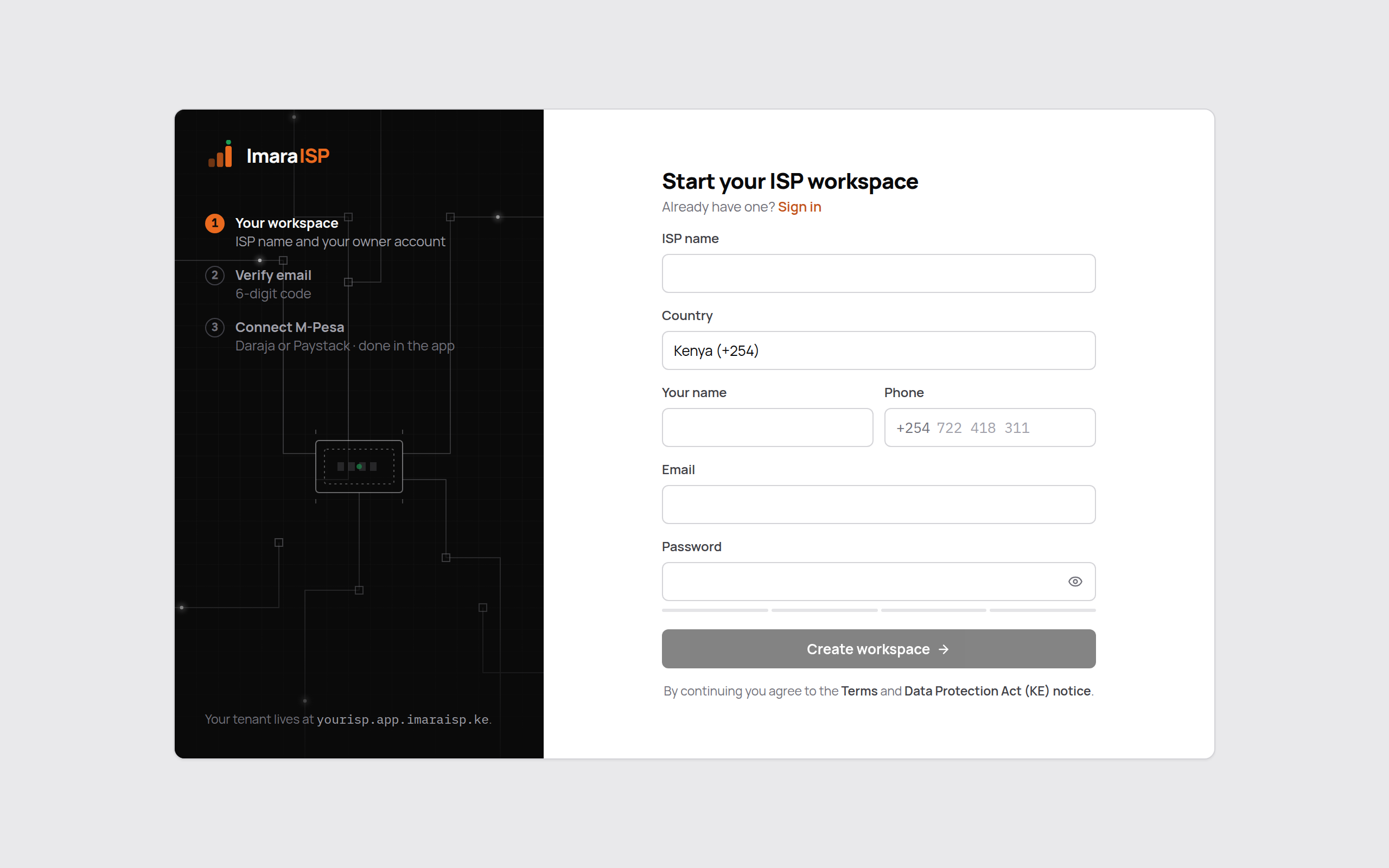
Fill in "Start your ISP workspace"
| Field | What to enter |
|---|---|
| ISP name | Your trading name, for example "Coastlink ISP". |
| Country | Sets your workspace's currency and timezone, the phone format and the payment step wording. The currency cannot be changed later. |
| Your name | The Owner's own name. |
| Phone | Your mobile number; it is normalised to international format. |
| The address you will sign in with and where the verification code goes. | |
| Password | At least 12 characters. The strength meter must turn green before "Create workspace" enables. |
Click Create workspace
The footer of the aside reads "You will sign in at app.imaraisp.ke." Your workspace's short name is derived from the ISP name for you (Coastlink ISP → coastlinkisp), so there is no address to choose.
Verify your email
"Check your email" asks for the 6-digit code sent to your address, or you can tap the link in the email. "Didn't get it?" offers Resend after a 60-second countdown; "Wrong email?" returns to the form. The code expires in 15 minutes. Check spam; the email comes from ImaraISP.
Sign in
On success you see "Email verified. Your workspace is live. Sign in to connect your payment provider and add your first router." Follow Set up your ISP from there.
Joining an existing workspace
If a colleague invited you, do not start a new workspace. Open the invite link instead. It shows "Set up your account" with your role and what it can do, asks for your name and a password, and then tells you "You've joined Coastlink ISP." See Team & roles.