 ImaraISP
Team & roles
Invite staff by phone or email, what each role can do, how reseller staff show up, and how access ends
Settings → Team & roles lists everyone who can act in your workspace and what their role lets them do. The header reads, for example, "4 of 5 seats used · roles decide what each person can see and do", with the Invite button on the right. Owners manage the team; Ops can see it.
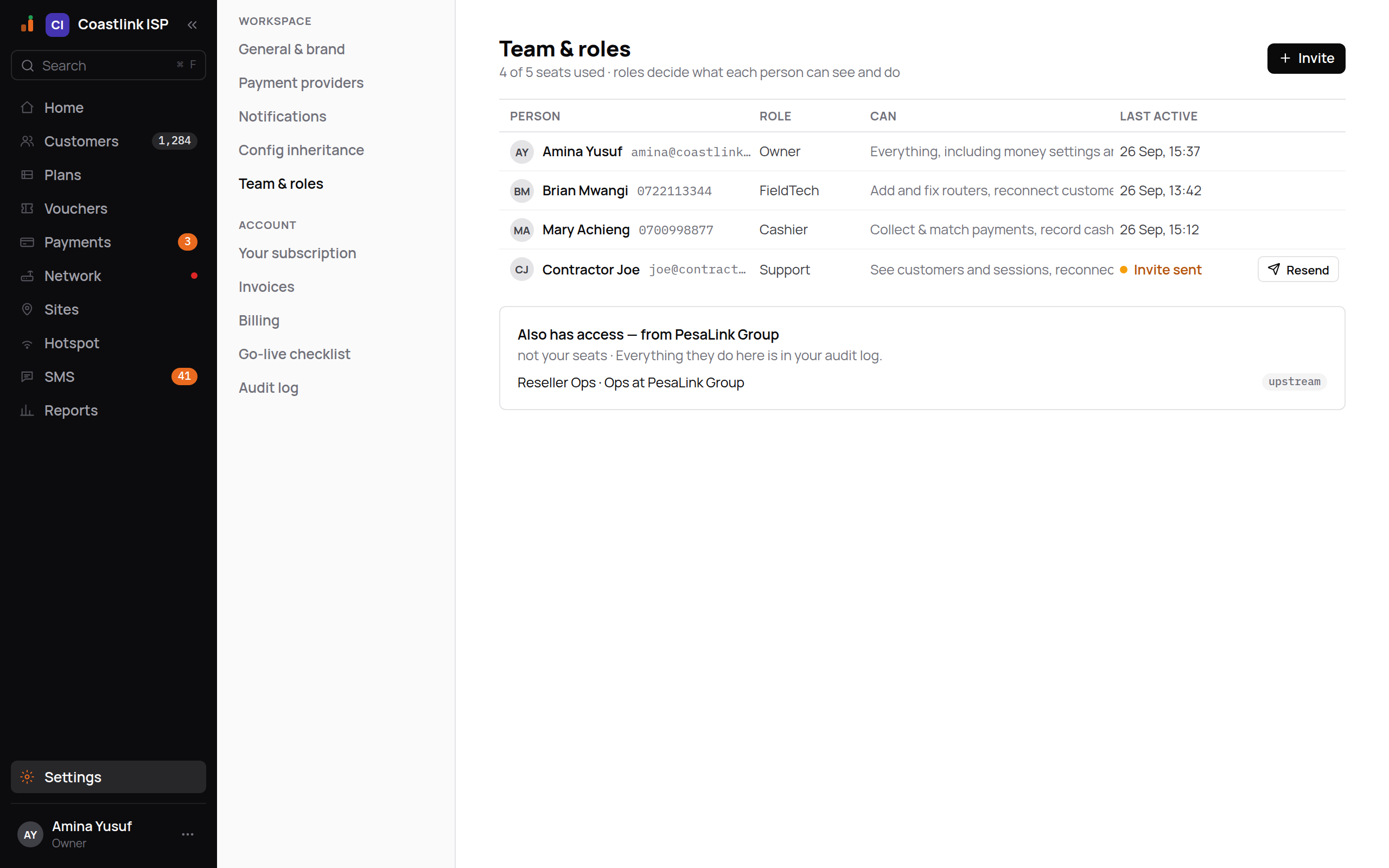
The roster
| Column | Meaning |
|---|---|
| Person | Name and contact (email or phone) |
| Role | Owner, Ops, Cashier, Support, FieldTech or Viewer |
| Can | A plain sentence describing what the role allows, for example "Add and fix routers, reconnect customers, see sessions." |
| Last active | When they last used the app, for example "25 Sep, 20:55", or Invite sent in amber while an invite is unaccepted |
An unaccepted invite has a Resend button on its row. In the example above Contractor Joe (Support) has not yet accepted his invite.
Roles
| Role | Can | Cannot |
|---|---|---|
| Owner | "Everything, including money settings and this page" | Nothing withheld. Use sparingly |
| Ops | "Everything day-to-day. Not billing settings or team." Customers, payments, plans, routers, hotspot, reconnects | Refunds, payment providers, roles, workspace settings, creating child tenants |
| Cashier | "Collect & match payments, record cash, see customers." Also sells vouchers and adds customer notes | Change plans, refund, touch routers |
| Support | "See customers and sessions, reconnect." Also resets service passwords, forgets devices, queries a payment with the gateway | Any money action, plans, providers |
| FieldTech | "Add and fix routers, reconnect customers, see sessions." Also manages CPE and access points | Money, plans, team |
| Viewer | "Read-only access to customers, payments and reports." | Any change |
The app hides what a role cannot do. A cashier never sees Add router; a field tech never sees Pay now. The same rules are enforced on the server, so a hidden button cannot be reached another way. The full list is in Permissions.
Invite a team member
Click Invite
The dialog "Invite a team member" opens.
Enter Phone or email
A phone number, written the way your country writes it (the box shows an example, such as 0712 345 678 in Kenya), or an email address. The invite goes there.
Pick a Role
Four options are offered here, each with its one-line description: Cashier ("Collect and match payments, record cash. Can't change plans, refund, or touch routers."), FieldTech ("Add routers, reconnect customers, see sessions. No money."), Ops ("Everything day-to-day. Not billing settings or team.") and Owner ("Everything. Use sparingly.").
Contractors: tick the expiry box
"Access expires after 30 days (contractors)" ends the membership automatically. Use it for anyone who should not keep access after a job.
Click Send invite
The footer states the cost: "Uses 1 seat (5th of 5)". When every seat is used the button is disabled; free a seat or raise your seat allowance under Your subscription.
What the invitee sees
They open the link, land on "Set up your account" with the line "Cashier can take and match payments and mark invoices paid." (the wording matches their role), enter their name and a password of at least 12 characters, and are told "You've joined Coastlink ISP. Sign in as you@example.com to get started." They then sign in at your workspace address. An invite can be declined ("Not you? Decline"), and an expired or used link says "This invite can't be used. Ask whoever invited you to send a new one."
Upstream access
If a reseller sits above your workspace, its staff can switch into yours. They are listed in a separate block, Also has access — from PesaLink Group, with the note "not your seats · Everything they do here is in your audit log." Each row names the person, their role and where they come from ("Reseller Ops · Ops at PesaLink Group"), tagged upstream. They do not use your seats. That access is managed on the reseller's own Team page, not yours. Everything they do in your workspace is logged with both workspaces named, and they see the acting banner the whole time.
When access ends
- An invite that was never accepted expires on its own; resend it if the person still needs it.
- A contractor membership created with the 30-day box ends on its own on the day shown.
- Upstream reseller staff lose access when the reseller removes them from its own team.
Owners
An Owner can change payment providers, roles and every setting, and can invite other Owners. Keep the number of Owners small and give day-to-day staff Ops or a narrower role.