 ImaraISP
Managing your ISPs
The tenant list, creating an ISP under you, switching in with the acting banner, and what your ISPs inherit from you
As a reseller, every ISP you sell ImaraISP to is a tenant under your own. Tenants form a tree: you at the top, your ISPs below you, and their branches below them. You see the whole tree; each ISP sees only itself and its branches.
| Kind | Who it is | Can have children of kind |
|---|---|---|
| Reseller | Sells ImaraISP to ISPs and bills them | ISP, Branch |
| ISP | An operator with its own subscribers, routers and money | Branch |
| Branch | A site or franchise inside an ISP | none |
The Tenants screen (sidebar entry Tenants) lists every tenant below the one you are acting in. Opening it needs the tenants read permission; Owner, Ops and Viewer have it.
The tenant list
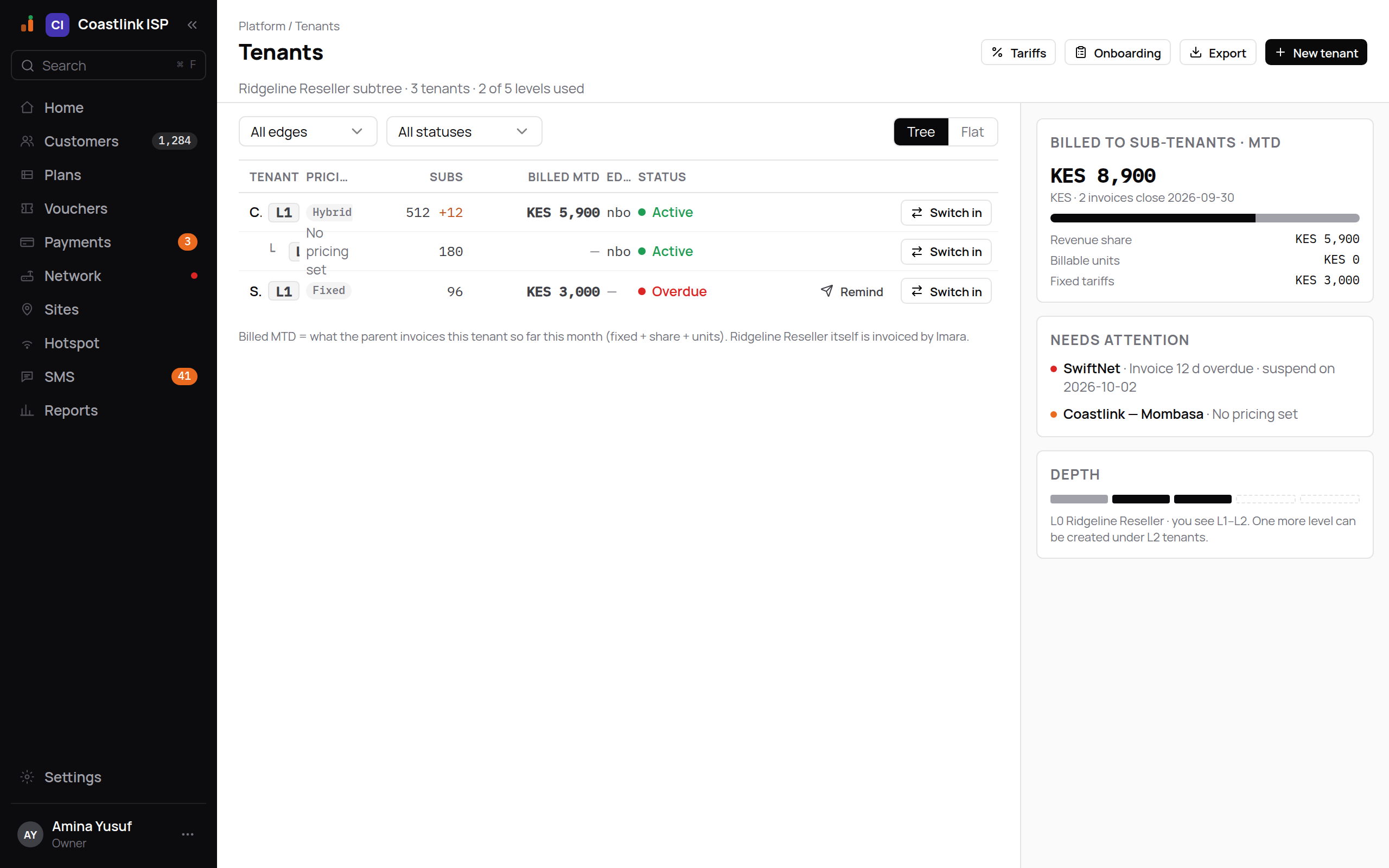
The subtitle summarises your tree, for example "Ridgeline Reseller subtree · 3 tenants · 2 of 5 levels used". Header actions:
- Export: downloads the filtered rows as a CSV file.
- New tenant: the one primary action on this screen. Owner only by default.
Above the table: a status filter (All statuses / Active / Trial / Past due) and a tree / flat toggle. Tree mode indents children under their parent; flat mode lists everyone alphabetically.
| Column | What it shows |
|---|---|
| Tenant | Name and a level tag (L1, L2...). Children are indented under their parent. |
| Pricing model | Fixed, Revenue share or Hybrid, then the terms, e.g. "KES 5,000/mo + 10% · Standard ISP v2". "custom" means the tenant is on edited terms. "No pricing set" means nothing has been assigned yet. |
| Subs | Active subscribers. "+12" in orange means 12 over the included quantity. |
| Billed MTD | What you have invoiced this tenant so far this month. |
| Status | Active, Trial, Overdue or Pending (the owner has not verified their email yet). |
| Actions | Remind on overdue rows; Switch in. |
The note under the table explains the money column: Billed MTD is what the parent invoices the tenant so far this month (fixed fee, revenue share and billable units). Your own tenant is invoiced by ImaraISP in the same way; see Your subscription.
The right rail
- Billed to sub-tenants · MTD: the total you have invoiced your ISPs this month, the invoice count and the closing date, then a split into Revenue share, Billable units and Fixed tariffs. Empty state: "Nothing invoiced this month yet."
- Needs attention: overdue invoices (red dot, e.g. "Invoice 12 d overdue · suspend on 2026-10-02") and tenants with "No pricing set" (orange dot). Otherwise "Nothing needs attention right now."
- Depth: five segments showing which levels exist below you, and either "One more level can be created under L2 tenants." or "L4 tenants can't have children."
With no tenants yet the screen says "No tenants yet. Create your first tenant with “New tenant” to start building the tree." If filters hide everything: "No tenant matches these filters."
Creating an ISP under you
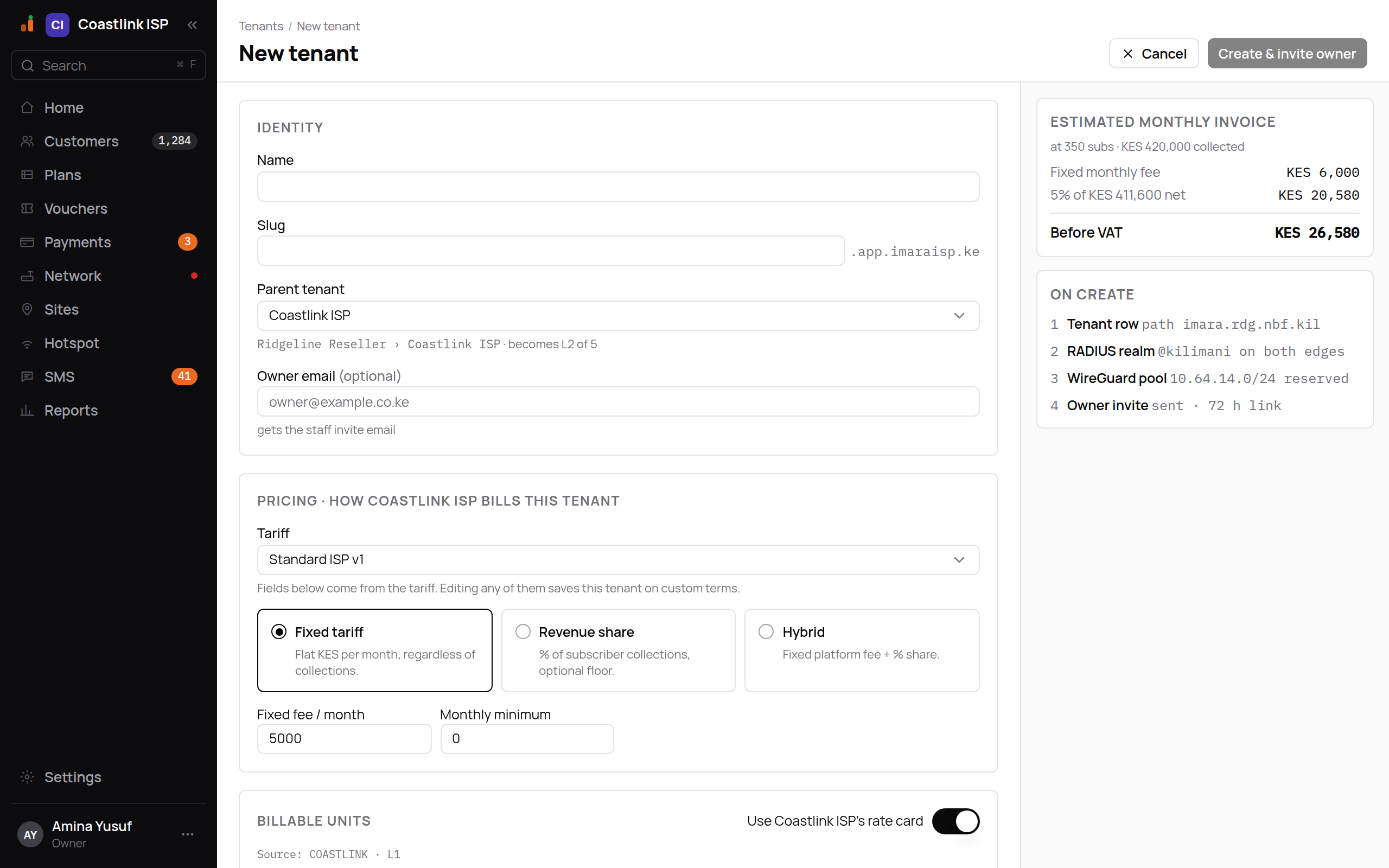
New tenant opens a full page.
Identity
- Name: the display name, e.g.
Coastlink ISP. - The slug is derived from the name for you (
Coastlink ISP→coastlinkisp; a-2suffix if that is taken). It becomes the ISP's admin pathapp.imaraisp.ke/t/{slug}and its portal addressportal.imaraisp.ke/{slug}. There is nothing to type. - Parent tenant: where in the tree it goes. The path and new level are shown underneath, e.g. "Ridgeline Reseller › Coastlink ISP · becomes L2 of 5".
- Kind: only shown when the parent allows more than one kind (see the table above).
- Country (required): where the tenant operates. It sets the tenant's currency and timezone, shown read-only under the list as soon as you pick one, for example "Bills in UGX · clock Africa/Kampala · set by the country" for Uganda. There is no default: Create & invite owner stays disabled until a country is chosen. The currency can never be changed afterwards, because payment providers and tariffs are tied to it; choose carefully.
- Owner email (optional): "gets the staff invite email". Leave blank to invite later.
Pricing · how you bill this tenant
Shown once a kind is chosen. Pricing is required for a Reseller or an ISP; a Branch is billed through its parent.
- Tariff: pick one of your published tariffs to fill the fields below. A tariff is priced in one currency and can only be given to an ISP that works in that currency; an ISP in another country needs a tariff in its own currency (for example a UGX tariff for a Ugandan ISP). Picking one in a different currency is flagged on the page ("This tariff is priced in KES; a tenant in this country bills in UGX. Choose a UGX tariff or edit the terms below.") and Create & invite owner stays disabled until you do one or the other. "Fields below come from the tariff. Editing any of them saves this tenant on custom terms." Custom terms are always priced in the new tenant's own currency.
- Pricing model: Fixed tariff ("Flat currency per month, regardless of collections.", for example "Flat UGX per month" for a Ugandan ISP), Revenue share ("% of subscriber collections, optional floor.") or Hybrid ("Fixed platform fee + % share.").
- Fields: Fixed fee / month, Revenue share (%), Share base (Gross or Net of payment fees), Monthly minimum.
- Net of payment fees takes each payment provider's fee off that provider's share of
the collections, at the rate in the ISP's Payment fee rates setting (basis points per
provider, for example
{"paystack": 150}for 1.5%). M-Pesa can also use the older M-Pesa fee rate (bps) setting. A provider with no rate costs nothing, so net equals gross until you set one.
Billable units
The per-unit rates for what the ISP uses beyond its plan: peak subscribers, routers, SMS and so on. Leave Use your rate card on to charge your own rates; switch it off to edit the rows for this tenant only.
Check the rail, then Create & invite owner
Estimated monthly invoice shows the lines this tenant would be billed at a sample size and the subtotal Before VAT. Until you choose pricing it reads "Choose pricing to see an estimate." On create lists what happens, including the owner invite sent with a 72-hour link. Click Create & invite owner. The confirmation reads "{name} was created." with Done or Switch to {name}.
Switching into an ISP
Switch in on a row (or Switch to {name} after creating one) opens that ISP's admin app with your own role from your reseller tenant. You need the switch permission (Owner and Ops have it) and a membership somewhere above the tenant.
While switched in, a persistent banner sits under the top bar on every screen:
You are acting in {tenant} as {role} via {home}. Actions are logged.
with a Switch tenant control to go back. It cannot be scrolled away or dismissed.
- Everything you change is written to the tenant you are acting in, never to your own.
- The switch and every action you take are logged for both tenants, so the ISP's owner can see who from your team was inside and when. The ISP's Team page also lists your staff who are able to switch in.
Reads are wide, writes are narrow
Lists on the Tenants screen show your whole subtree. Creating or editing anything only ever touches the tenant named in the banner. If you meant to edit a different ISP, switch first.
What inherits down, and what never does
| Inherits from you to your ISPs | Never inherits |
|---|---|
| Visibility (you see your ISPs' data) | Secrets: provider keys, router passwords, tunnel keys |
| Roles and memberships (a role on your tenant covers the subtree) | Captive portals (they can be copied, not shared) |
| Settings, unless the ISP overrides them | |
| Plan templates |
Money always books to the tenant that owns the service. An ISP's subscribers pay the ISP; you see the roll-up and invoice the ISP on the terms you set above.