 ImaraISP
Subscriber account area
The self-service page at portal.imaraisp.ke/{slug}/my where a subscriber signs in by SMS code, checks status and renews
Subscribers have a small account area of their own at https://portal.imaraisp.ke/{slug}/my.
It is not the captive portal: it works from anywhere with internet, on any device, and it needs
no username or password. The subscriber signs in with the phone number they pay with and a
6-digit code sent by SMS.
Share this link in your welcome SMS or on your website. There is no sign-up form; an account exists as soon as a phone number has bought a plan.
Signing in
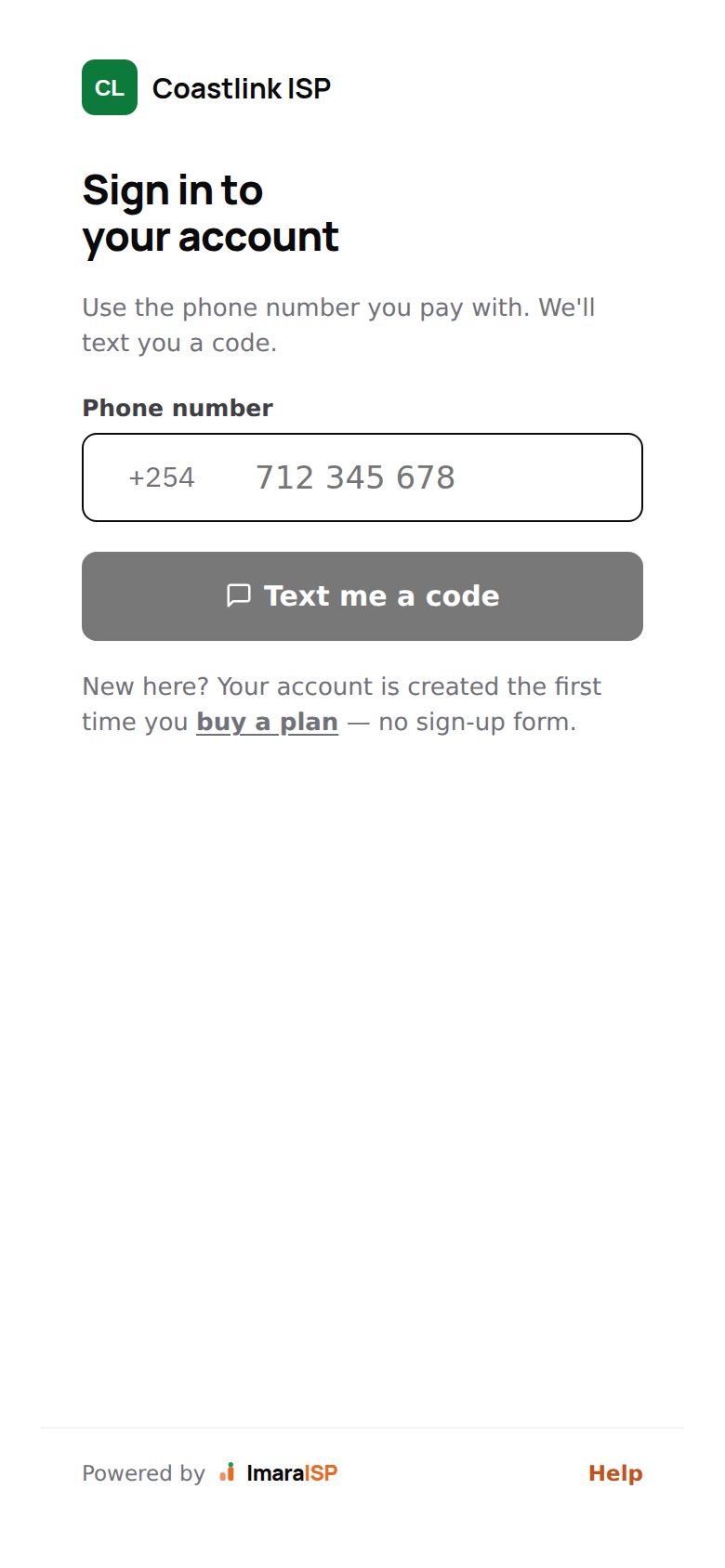
The screen shows your logo (or your initials on your brand colour) and your ISP name, then:
- Title Sign in to your account
- "Use the phone number you pay with. We'll text you a code."
- A Phone number field with your country's dial code as a fixed prefix (for example
+254in Kenya). The subscriber types the national number (for example712 345 678in Kenya); a leading0or the dial code also work. - The black Text me a code button
- "New here? Your account is created the first time you buy a plan, no sign-up form." with a buy a plan link that opens the normal plans screen
- A Help link in the footer that dials your support phone
Enter the phone number and tap Text me a code
The number must be the one on the customer record. A different phone gets: "No account with this number. Buy a plan to create one."
Type the 6-digit code
The next screen is Enter the code, with "Sent by SMS to 0722 418 311 · change". The code goes into six boxes. On most phones the SMS is read automatically ("Auto-reading SMS"). Tap Continue.
The account home opens
The device is now trusted for 90 days, so next time the home screen opens without a code.
If the code does not arrive
- Resend in 0:45 counts down, then becomes Resend code.
- Below the boxes: "No SMS? Dial {USSD code} from this number to get the code, or call {your ISP}." The USSD part only appears if you set a USSD code in the portal editor.
- change next to the number goes back to the sign-in screen.
| Message | Meaning |
|---|---|
| "Enter the phone number you pay with, e.g. 712 345 678." | The number is incomplete or invalid. |
| "Too many attempts. Wait a minute, then try again." | Too many code requests. |
| "Could not send a code. Check the number and try again." | Temporary SMS or network problem. |
| "That code is wrong or has expired. Check it, or ask for a new one." | Typo or old code. The boxes clear. |
| "Too many attempts. Please try again shortly." | Too many wrong codes. |
The status card
The home screen opens with a green line, "Signed in · this phone is trusted for 90 days", then a greeting ("Hi, Amina" if a first name is on file, otherwise "Your account") and the plan name and account identifier in monospace.
The status card shows:
| Row | Values |
|---|---|
| Status | Online (green tick) or Offline (red) |
| Expires | The real expiry date and days left, for example "Sep 28 · in 8 days" or "today" |
| Usage bar | Only when the plan has a data cap; shows used against the cap |
Below the status rows the card can also show:
- Credit or Owed, for example "Credit KES 300" or "Owed KES 300" (in your currency). Credit is money paid that has not yet bought a plan period. Owed appears after a reversal took back more than the credit held.
- "Switching to {plan} · once paid" when a plan change is waiting for money. See Changing plan below.
Several accounts on one phone
If the phone the subscriber signed in with is on more than one customer (a parent paying for two homes, for example), the home screen shows an account switcher so they can move between those accounts.
Everything on this card is live data from the customer's service. If a customer says the card is wrong, the service record is wrong too; check it in Customers.
Renewing
Renew is the one orange button, for example "Renew · KES 700". What it does depends on the line.
A subscription line (for example PPPoE): Renew opens that connection's pay page with the amount due already filled in. The amount due is the next period's price minus any credit. The page lists how to pay with each of your payment providers: for example a paybill number and the account number to type, or a phone prompt where the provider supports it. Once enough is paid for a period, the service is extended and the router reconnects within seconds. See The pay link.
If the credit already covers the next period, the subscriber sees "Your credit covers the next renewal." Nothing needs paying; the line renews from credit when it reaches its expiry.
A hotspot line: Renew opens the same plans and payment screens as the captive portal, so the flow is identical to buying the first time. See The captive portal for every message on that path.
Get help dials your support phone.
Changing plan
Change plan lists the plans the subscriber can move to: active plans of the same type as their connection that you have marked self-serve by ticking Customers can switch to this plan themselves on the plan form. A plan you have not ticked is never offered here. See Self-serve plans.
Picking a plan shows the credit for the unused days of the current period, then one of two buttons:
- Switch to {plan} when the credit covers the new plan. The switch happens now: a new period starts and the new speed applies at once.
- Pay amount and switch when it does not, with the shortfall in your currency (for example Pay KES 500 and switch). The change is recorded as pending, the status card shows "Switching to {plan} · once paid", and the pay page opens for the shortfall. The switch happens by itself as soon as the money arrives.
While a switch is pending, picking the current plan offers Keep {plan}, cancel the switch.
Trusted device and signing out
- After a successful code the browser is trusted for 90 days. Opening
/myon that device goes straight to the status card. - Sign out in the footer ends the session and returns to the sign-in screen. The next visit needs a new code.
- The trust is per browser. A shared or replaced phone starts from the sign-in screen.
Support tip
If a customer cannot sign in, first confirm the phone number on their customer record matches the one they are typing. Nine times out of ten they are using a second line.