 ImaraISP
Customers
Find a subscriber by phone, read their status at a glance, and act on their service
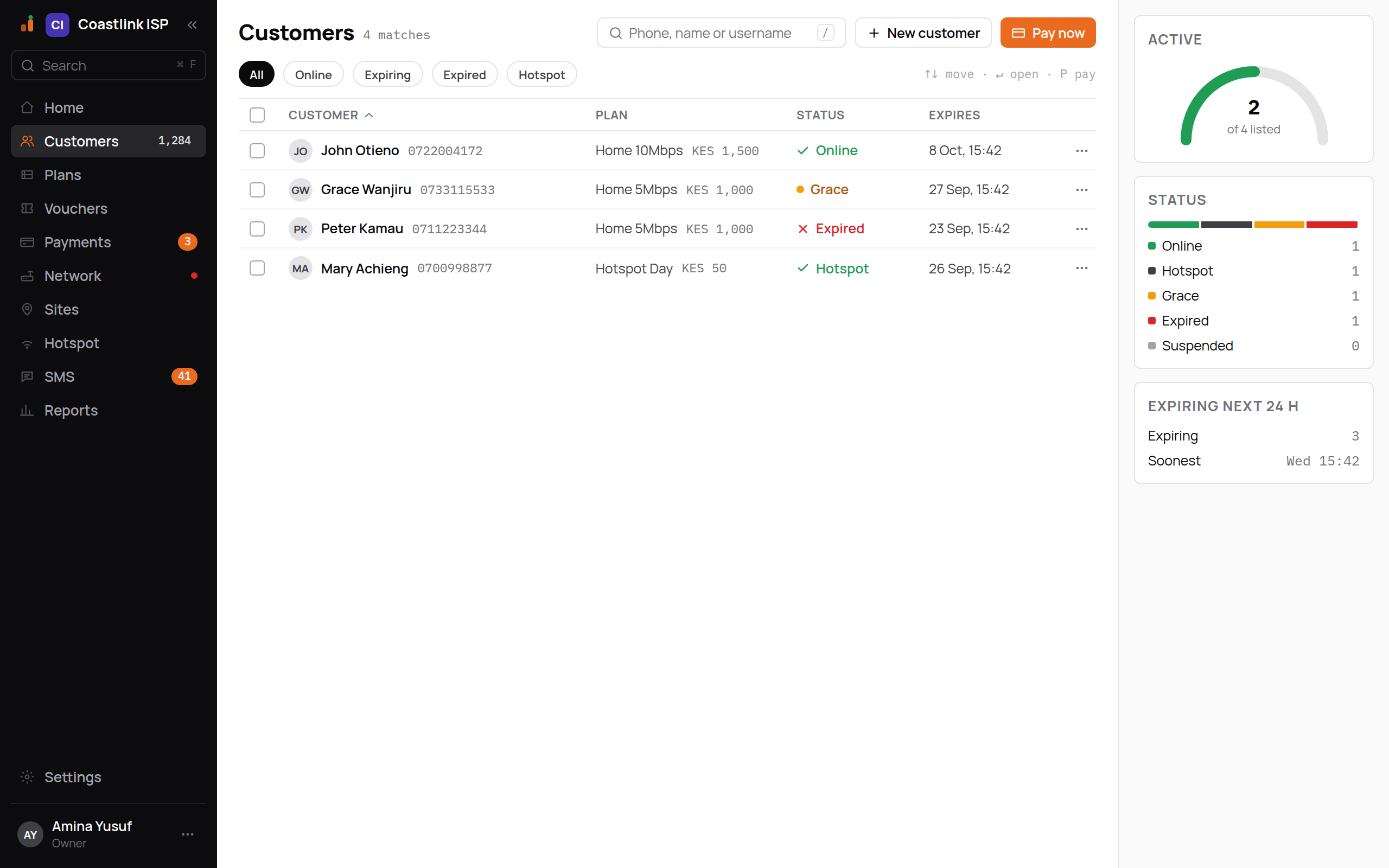
The Customers screen is where most of the day happens. Type a phone number, open the row, and pay, reconnect or suspend from there. In the example below, Coastlink ISP has four subscribers listed.
The list
The page header shows a match count (for example "4 matches for "0722""), a search box, New customer and the orange Pay now button. Pay now is the one money action on this screen.
| Column | What it shows |
|---|---|
| Customer | Name with the phone number underneath |
| Plan | Plan name and its price, for example Home 10Mbps and KES 1,500 |
| Status | A dot and a word (see below) |
| Expires | When the current plan period ends, in Nairobi time |
| ⋯ | Opens the row detail |
Above the table are five filter chips: all, online, expiring, expired and hotspot. One chip is active at a time.
The right rail is derived from the rows currently listed, not from your whole book. It shows Active (of N listed), a Status bar split into Online, Hotspot, Grace, Expired and Suspended, and Expiring next 24 h with the soonest expiry time. When nothing is due it says "Nothing in this list expires in the next day."
If nothing matches you see "No customers match" with the hint "Try a different search or clear the filter chips."
What each status means
| Word | Colour | Meaning |
|---|---|---|
| Online | Green check | Paid up and currently connected over PPPoE |
| Hotspot | Green | Paid up and currently connected on the hotspot |
| Grace | Amber | The plan has expired but the customer is still in the grace period. They usually stay connected at a reduced speed until grace ends |
| Expired | Red cross | The plan ended and grace is over. The customer cannot connect until they pay |
| Suspended | Grey | An operator suspended the service. Their logins are rejected until someone clicks Reconnect |
Green is used only for a live connection or money in. It never means "fine but offline".
Searching
Phone number is the universal search key. The search box accepts a phone number, a name or a username, and a partial phone matches: typing 0722 41 lists every customer whose number contains those digits. Results update about a quarter of a second after you stop typing.
Keyboard shortcuts:
/opens the search palette from anywhere in the app (Ctrl+F or ⌘F also works).↑↓move through results,↵opens the selected customer.Popens Pay now for the selected result.- Inside the table,
↑↓move between rows and↵opens the row.
The chip row reminds you: "↑↓ move · ↵ open · P pay".
Account numbers
Every customer has an account number, for example CL1043: a short prefix for your ISP followed by a number. Each connection gets its own number, CL1043-1, CL1043-2 and so on. You see the account number on the customer list and on the customer's record, and the search box finds a customer by it.
Account numbers ignore case, spaces and dashes, so cl 1043 finds CL1043. Subscribers use them as the reference when they pay you directly, which is how their money reaches the right account without a cashier. Tell a customer with several connections to pay with the connection number, so the right line is renewed. See How customers pay.
Adding a customer
Click New customer
The dialog asks for Name, Phone (Kenyan format, for example +254 722 418 300), Plan (choose from your active plans), Username and Router (optional). The username is suggested from the name but you can edit it. Leave the router on "Assign later" if you do not know it yet.
Click Create customer
The customer and their service are created together. If it fails you see "Couldn't create the customer. Try again."
If the phone is already on another customer, ImaraISP warns you before creating anything and asks you to confirm "create a separate account". See Shared phones below.
Copy the credentials
The dialog changes to Customer created and shows the PPPoE Username and Password. The password is shown once. Use Copy to take both, configure the subscriber's router, then click Done. The new customer opens in the list.
The password is shown once
No screen shows the PPPoE password again. If it is lost, use Reset password on the customer's full record. The old password stops working immediately.
Shared phones
One phone number can be on several customers, for example a parent who pays for two homes. That is allowed, but it is also what a duplicate looks like, so ImaraISP asks you to confirm "create a separate account" when the phone is already in use. Search for the phone first so you do not create the same person twice.
What a shared phone changes:
- A payment that uses the shared phone as its reference is not guessed. It waits in the Unmatched queue on Payments, and the registered phone gets an SMS asking them to pay with the account number next time.
- In the subscriber account area, that phone sees an account switcher to move between its accounts.
The row detail
Clicking a row (or its ⋯ button) opens a detail panel in place, so the list stays visible. It shows the phone, the router and connection type (with "online" in green when connected) and the email. Four tabs:
- Service: a
PPPOEorHOTSPOTtag, the plan and price, and a Change link that opens the Change plan dialog (see Changing plan). When a plan change is waiting for money, a line underneath says "Switching to" the new plan "once the wallet covers it." Facts: Status, Expires, PPPoE login (username and a masked password with a show link) and Device (MAC, with "locked" when MAC-locked). Below that, when known: "Last online" with time, duration and IP. - Payments: the payment entries from the timeline, or "No payments recorded for this customer yet."
- Usage: "N GB this period", or "No usage data".
- Notes: the full timeline, or "Nothing on this customer's timeline yet."
The footer has the orange Pay button plus Reconnect and Suspend. Open full record goes to the full customer page. Press Esc or click outside to close the panel.
Bulk export
Tick the checkboxes on one or more rows and a bulk bar appears with Export. It downloads a CSV with Name, Phone, Username, Plan, Status and Expires for the ticked rows. Export is a separate permission from reading the list, so a Viewer will not see the button.
The full customer record
Open a customer's full record from Open full record or by pressing ↵ in the search palette.
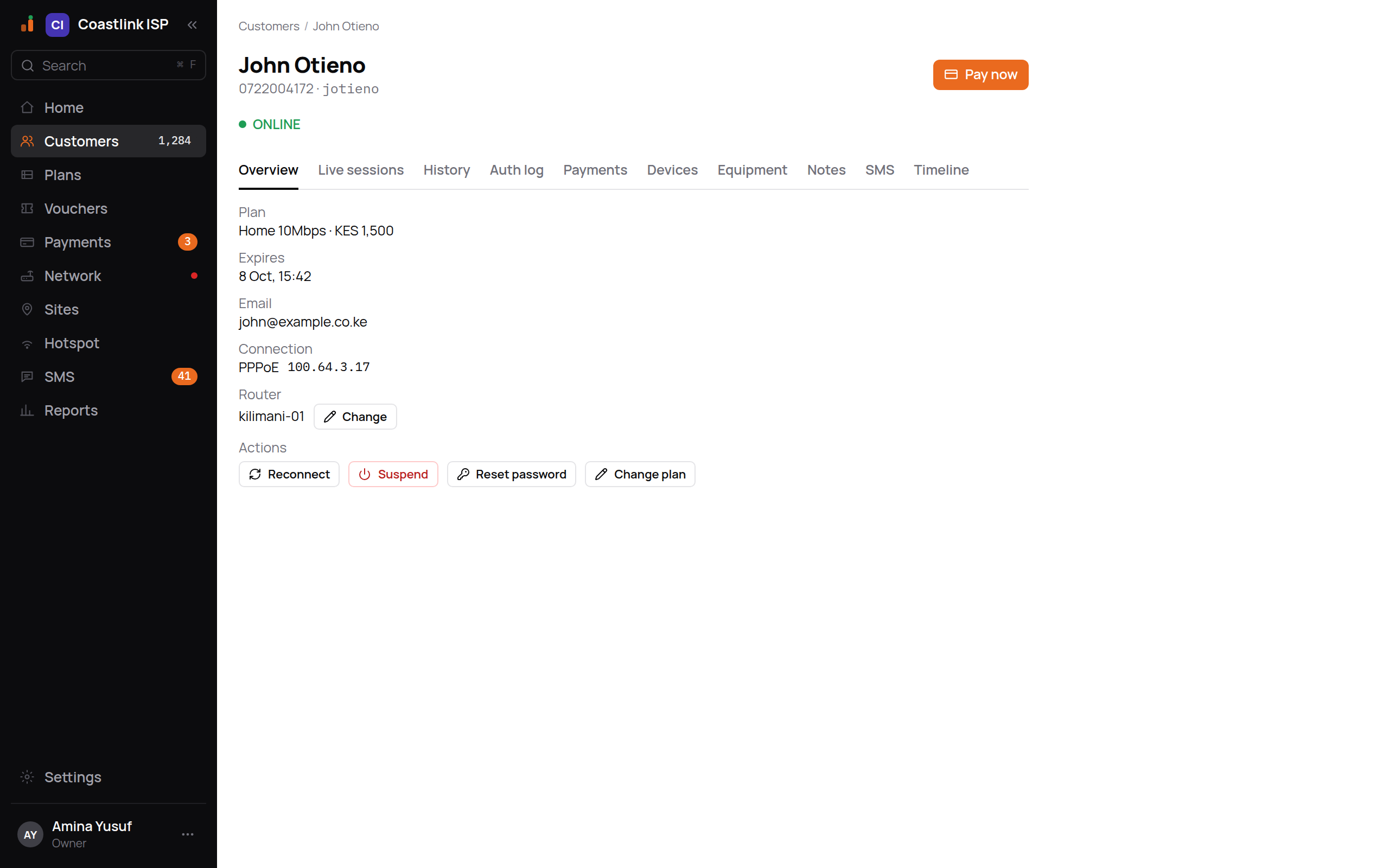
The header shows the name, phone and username, the current status word and the orange Pay now button. Below it are eleven tabs.
The Balance chip
Next to the status word, a Balance chip shows where the customer's wallet stands:
- Credit and an amount, for example "Credit KES 700" (in your currency), in plain ink. Money paid that has not yet bought a plan period.
- Owed and an amount, for example "Owed KES 300", in red. The balance went below zero, after a reversal or a staff adjustment. The next payment clears it first.
- Nothing at all when the balance is zero.
The chip is read-only. The Wallet tab shows how the balance got there. For the rules behind credit, see How customers pay.
Overview
Plan and price, Expires, Email, Connection (type and last IP), and Router with a Change control that assigns the service to one of your routers (or "Unassigned"). Assigning a router is bookkeeping only; it does not push anything to the router.
When a plan change is waiting for money, a Plan change line appears under the plan: "Waiting for payment" in amber and "Switches to" the new plan "once the wallet covers it." Cancel change drops the pending change. The running plan is not touched either way.
The Actions row holds the service controls. Each opens a confirmation dialog with a Reason field:
- Reconnect ("Reconnect this service?"): puts the service back into an active state so the customer can log in again. Reason is optional.
- Suspend ("Suspend this service?"): cuts the subscriber off. Their logins are rejected and any open session is torn down. A reason of at least 5 characters is required. Reversible with Reconnect.
- Reset password ("Reset the RADIUS password?"): generates a new PPPoE password. The current one stops working immediately and the new one is shown once, with a Copy button.
- Change plan: opens the Change plan dialog, below.
Changing plan
The Change plan dialog is the same from the customer record and from the Customers list's row detail. It needs the "Services: change plan" permission. A change made here always happens now; there is no "at next renewal" option.
-
Choose a plan. The dialog lists your active plans with their prices. The customer's plan is marked Current. Click Choose beside the new one.
-
Read the quote. Before anything is saved, ImaraISP shows what the change costs. Nothing is written while you read it.
Line Meaning Credit for unused time The unused part of the current paid period, credited back pro rata. Grace and expired time earns nothing Wallet after credit The customer's balance with that credit added The new plan's name Its price for one period Switches now or Waits for payment Whether the wallet covers the new plan. When it does not, the line says "Waits for" and the amount still owed -
Confirm. The button matches the quote:
- Switch now when the wallet covers the new plan. A new period starts at once and the new speed reaches the router.
- Save as pending when it does not. The dialog says "Saved." and that the new plan "starts as soon as" the shortfall "more is paid. The current plan keeps running until then." Click Done.
A pending change applies by itself as soon as enough money arrives, whichever way it arrives. Until then it shows on the Overview tab with Cancel change. See Changing plan for how the credit is worked out.
Wallet
The Wallet tab is the customer's money history. The line at the top shows the Balance (with "Owed" in red when it is below zero) and the customer's account number.
The table lists the latest 100 entries:
| Column | Shows |
|---|---|
| When | Date and time of the entry |
| What | The entry in plain words, with the payment receipt or reference beside it when there is one |
| Amount | Signed: + for money into the wallet, − for money out of it |
| Balance | The balance right after that entry |
The words you will see in What:
| Entry | Meaning |
|---|---|
| Payment received | A payment added to the wallet |
| Plan period bought | Credit spent on one or more whole plan periods |
| Credit for unused time | Unused days credited back by a plan change |
| Plan-change credit voided | That credit taken back, because the payment behind the switch was reversed |
| Payment reversed | A reversed payment taken back out |
| Purchase voided | Plan periods cancelled by a reversal |
| Staff adjustment | A correction made with Adjust balance, or legacy credit granted from the Payments screen |
| Opening balance | The balance carried over when wallets started. Only credit backed by a paid receipt was carried; the rest is reviewed on the Payments screen |
Entries ending "(before wallet)", such as "Credit (before wallet)", are older history from before wallets started, kept so past records still read in plain words.
The wallet is append-only. No entry is ever edited or deleted; a correction is a new entry, so the table always explains the balance line by line.
With no entries yet: "No wallet entries yet" and "Payments land here as credit and renew the connection. Use Pay now above to take one."
Adjust balance
Adjust balance corrects the wallet when there is no payment behind the change, for example goodwill credit after an outage or money a customer owes you for equipment. Only people with the "Customers: adjust balance" permission see it: Owner and Ops by default.
- Pick Add credit or Record amount owed.
- Type the amount in your currency, for example
700or700.50, and a Reason ("Why this correction?") of at least 5 characters. - Confirm. The button repeats what you are about to do, for example Add credit KES 700 when your currency is KES. The change is written to the wallet as a Staff adjustment and to the audit log with your name and reason.
Adjusting does not renew anything
Adding credit only changes the balance. The credit is spent by Allocate credit (below), by the customer's next payment, or by the automatic renewal from credit when the connection reaches its expiry.
Allocate credit
For a customer with more than one connection, a payment made with the customer number is held as credit, because ImaraISP cannot know which line to renew. When there is credit and the customer has more than one connection, the Wallet tab shows Renew, a connection picker (account number, username and plan), and Allocate credit.
Pick the connection and click Allocate credit. It buys as many whole periods of that connection's plan as the credit covers, and says so: "Renewed" the username "for 1 period." If the credit is short of one period: "Not enough credit for a whole period of that plan. The credit stays in the wallet."
Allocating needs the "Payments: match" permission, the same decision as matching money on the Payments screen. With a single connection there is nothing to choose, so the control is not shown: the wallet renews that connection by itself.
Live sessions
Refreshes every 30 seconds. Shows the session id, IP, MAC, router, start time, duration and bytes. A session whose accounting has stopped updating is flagged "stale accounting" in amber instead of a green "online".
When nobody is connected: "Not online right now. No open session. If the customer says they are connected, check the Auth log tab for a recent reject, then their router."
Disconnect on a session requires you to type the customer's username and give a reason. The disconnect is queued, not confirmed, so the tab refreshes a moment later.
History, Auth log and Payments
- History lists closed sessions. Empty state: "No closed sessions yet."
- Auth log lists login attempts as Accept, Reject or Other. Empty state: "No authentication attempts recorded. Nothing has tried to log in as this customer."
- Payments lists every payment with its status word. Empty state: "No payments yet. This customer has never paid. Use Pay now above to take a first payment — by phone prompt, a payment they made themselves, or cash."
Devices and Equipment
Devices shows every MAC that has authenticated, and whether a MAC lock is set ("not locked" otherwise). Forget removes a remembered MAC after a reason; it can reappear the next time that device authenticates.
Equipment shows a managed home router linked to this customer, with its Wi-Fi name and last check-in. Actions: Change Wi-Fi password (the new key is shown once), Re-send PPPoE and Reboot. With nothing linked it says "No router linked." with a Link by serial button.
Notes, SMS and Timeline
- Notes: "Record a call or a site-visit note…" so the next operator has the context.
- SMS: the messages sent to this customer, with the same retry controls as the SMS screen.
- Timeline: payments, reconnects and plan changes in order. Empty state: "Nothing has happened yet."