 ImaraISP
The captive portal
What a subscriber sees when they join your hotspot, screen by screen, so support can talk them through it
When someone joins your hotspot Wi-Fi, the router sends them to your captive portal at
https://portal.imaraisp.ke/{slug}. The portal is your brand: your logo, your name, your colours
and your wording from the Hotspot portal editor.
ImaraISP only appears in the footer as "Powered by ImaraISP".
This page walks through every screen in the order a subscriber meets them. Use it when a customer calls and says "I paid and nothing happened".
The portal never lives on the router
The router only redirects to the portal. The pages, plans and payments all come from ImaraISP. If the portal looks wrong, fix it in the editor, not on the MikroTik.
1. The plans screen
The first thing a subscriber sees is your logo, your ISP name, and the title and subtitle you set in the editor. Below that is the list of plans you published to this portal.
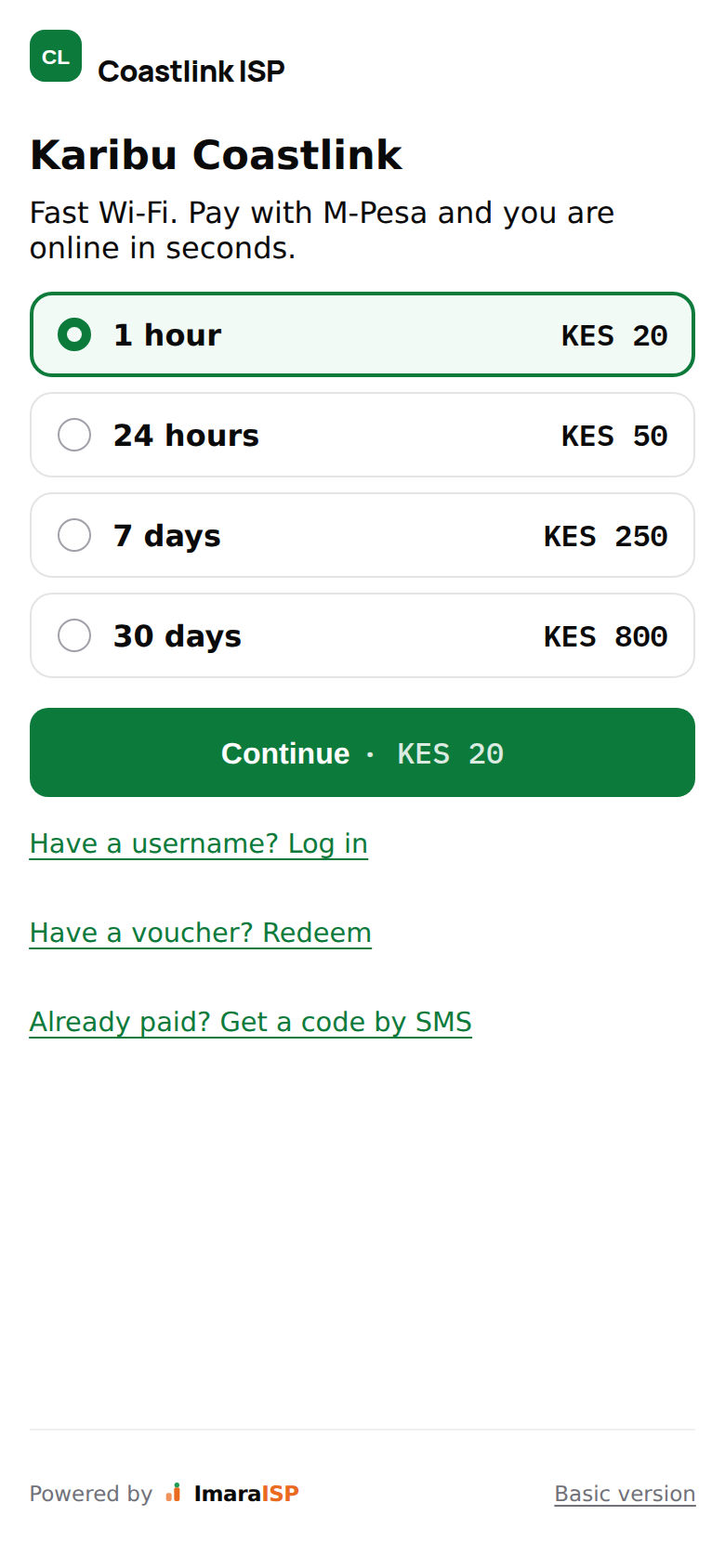
- Each plan is a card showing its duration label and its price, for example KES 50.
- The first plan is preselected. Tapping another card selects it.
- The main button reads Continue · KES 50 (the price follows the selected plan).
- Under the button are links, depending on what you enabled:
- Have a username? Log in (always shown)
- Have a voucher? Redeem (only if vouchers are enabled on this portal)
- Already paid? Get a code by SMS (only if phone-OTP login is enabled)
If the router just refused a login, the plans screen says so at the top: "Login failed: {reason}. Try again, or buy a plan below." That message comes straight from the router, so "invalid username or password" or "session limit reached" is the router's own verdict.
2. Choosing how to pay
After Continue the subscriber sees the plan name and price, then the payment options.
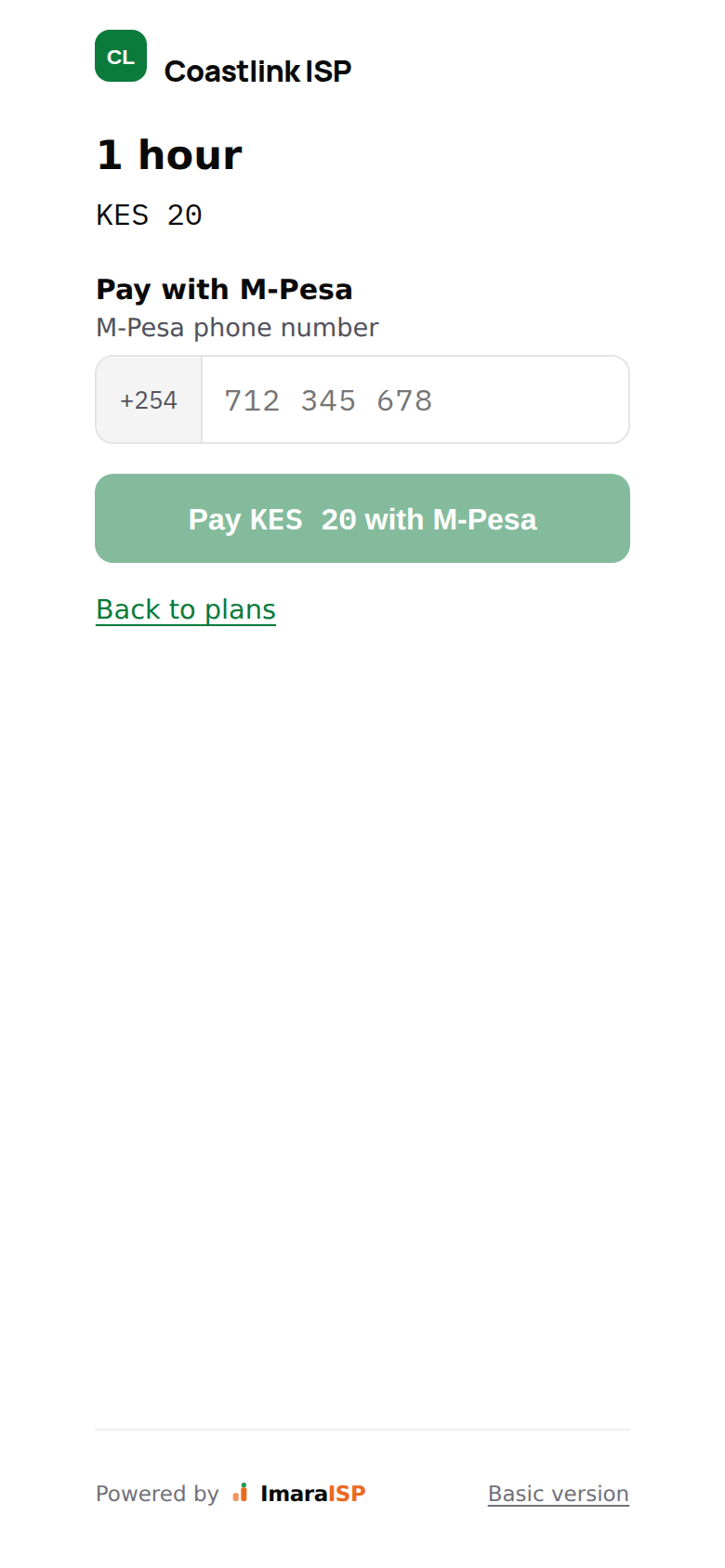
What appears depends on which payment providers you enabled. Mobile money is named by your provider, or by what it is called in your country (for example "M-Pesa" in Kenya):
| Providers enabled | What the subscriber sees |
|---|---|
| Mobile money only | Heading Pay with mobile money (for example Pay with M-Pesa) and the phone field |
| Card (Paystack) only | Heading Pay by card or bank |
| Both | A chooser titled HOW WOULD YOU LIKE TO PAY? with the mobile-money option ("Prompt on your phone", for example M-Pesa) and Card & bank ("Visa · Mastercard · bank · via Paystack"). Mobile money is preselected |
| None (cash only) | A Pay at the office card with your office address and hours from the editor |
If you never set office copy, the card says: "Online payment is not available right now. Please pay at our office to get online."
Paying with mobile money
For example, in Kenya with M-Pesa:
- The field is labelled with the mobile-money name, for example M-Pesa phone number, with your
country's dial code as a fixed prefix cell (
+254in Kenya). The subscriber types the national number, for example712 345 678. A leading 0 or the dial code also works. The empty box shows an example number from your country. - They tap the pay button, which carries the price in your currency (for example Pay KES 50 with M-Pesa).
- A payment prompt arrives on that phone. They enter their PIN.
Inline errors on this screen and what they mean:
| Message | Cause and fix |
|---|---|
| "Enter a valid phone number." | The number is incomplete or not a valid number for your country. |
| "Too many attempts. Wait a minute, then try again." | The subscriber tapped Pay too many times. Wait, do not retry immediately. |
| "Check the number and the plan, then try again." | The request was rejected. Re-read the number. |
| "Could not start payment. Please try again." | A temporary server or network problem. Retry once. |
There is one non-inline case. If the portal reads "We could not detect your device. Reconnect to the Wi-Fi, reopen the sign-in page, and try again.", the router did not hand over the device's hardware address. Retrying will not help; the subscriber must forget the network, rejoin, and open the sign-in page again.
Paying by card
The card path asks for Email for your receipt and Phone number, then says "You'll enter card details on Paystack's secure page and return here automatically." The button is Continue to Paystack followed by the price in your currency, for example Continue to Paystack · KES 50. After paying, the browser returns to the portal on its own.
Every pay screen has a Back to plans link.
3. Waiting for the payment
Once a payment starts, the screen changes to Connecting… with a spinner and a two-step checklist: "Payment confirmed" and "Logging in to the hotspot". The line under the title depends on the method:
- Mobile money: "Check your phone for the mobile money prompt and enter your PIN." (for example "the M-Pesa prompt")
- Card: "Complete the payment in the Paystack window to get online."
- Cash at the counter: "Pay at the counter and quote this phone number. You will be connected as soon as the cashier confirms."
The portal checks the payment every 3 seconds. When it is PAID, it moves on automatically.
4. Automatic connection
The subscriber never types a hotspot username. On PAID, the portal receives a one-time login and submits it to the router itself, so no password is ever shown or typed. The screen briefly says Logging you in…, then the router confirms by opening the status page.
If the router does not answer within about 7 seconds, the portal retries once. If it still gets nowhere it stops and shows: "Payment received. Reconnect to Wi-Fi to get online." The login is kept for 10 minutes in that browser tab, so reopening the sign-in page finishes it. Once the device reconnects, the router recognises it and lets it through.
Paid but not online
Ask the customer to turn Wi-Fi off and on, then open the sign-in page again. Do not sell them a second plan. If they are still stuck after that, look them up in Payments by phone number: the money is there and the service is extended even when the last hop to the router failed.
5. The "time left" screen
A connected device that opens the portal (or the router's status link) lands on
portal.imaraisp.ke/{slug}/status. It shows a black panel with the plan name, TIME LEFT, when
the plan ends ("ends Thu 14:03") and a live hours:minutes:seconds countdown. It refreshes every 30 seconds.
Below it: an Add more time button (back to the plans), and two facts the subscriber can read out to you: This device (the device's hardware address) and Receipt (the payment provider's receipt).
If the plan has run out the panel is replaced with "Your plan has expired." While it is still loading it says "Checking your connection…".
6. Paying with a voucher
Have a voucher? Redeem opens the voucher screen.
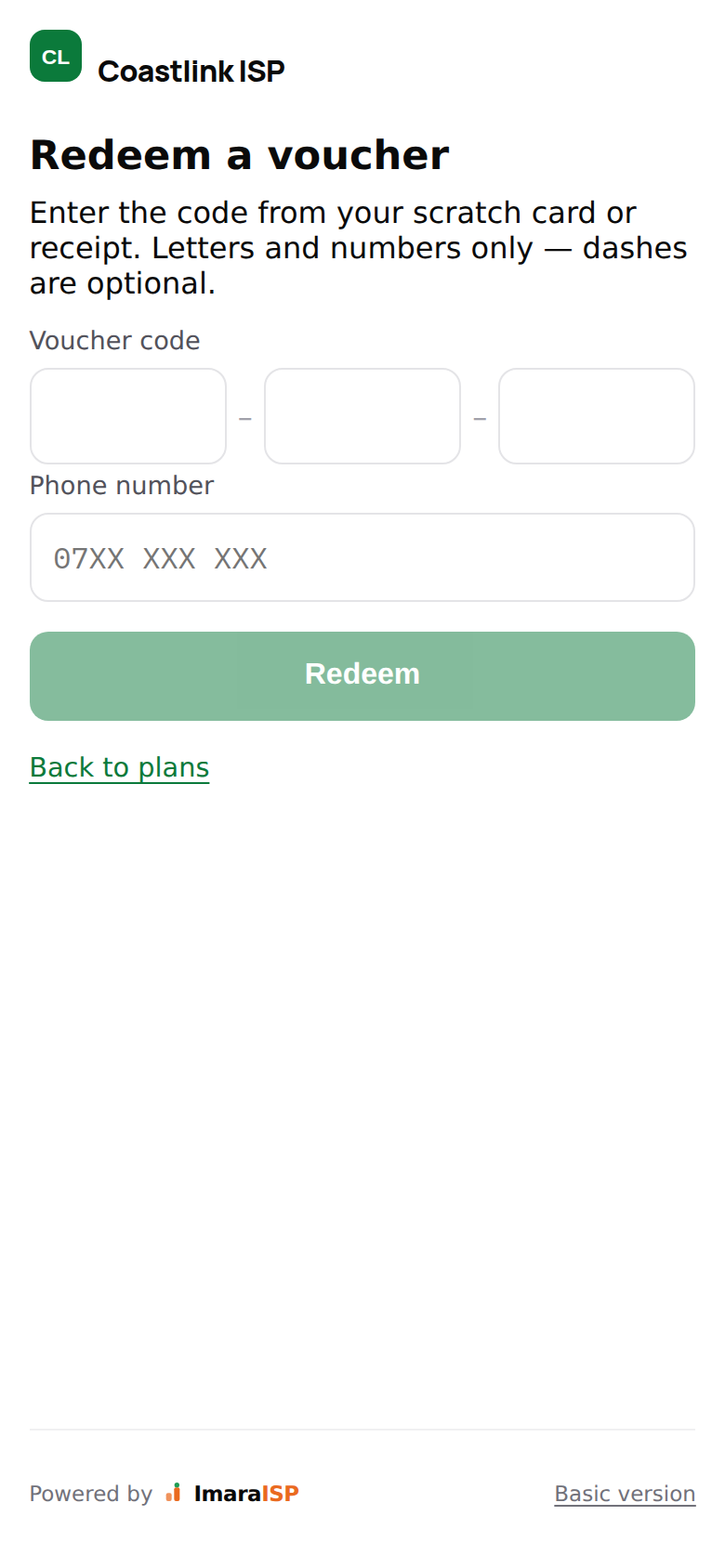
The screen says "Enter the code from your scratch card or receipt. Letters and numbers only, dashes are optional." The code is typed into three boxes of four characters; it uppercases itself and jumps to the next box. A Phone number is also required. The button is Redeem.
The only error is "That code could not be redeemed. Check it and try again." That covers a typo, an already-used code and an expired one. Check the voucher in Vouchers before issuing another.
On success the portal shows "Voucher accepted." and logs the device in exactly as after a payment.
7. Getting back online by SMS code
If phone-OTP login is enabled, Already paid? Get a code by SMS lets a subscriber with an active plan connect a new device, or claim a free trial if you offer one.
- Get a code by SMS: "We will text a code to the number on your plan." They enter the phone number and tap Send code.
- Enter your code: "We sent a 6-digit code to {number}." They type the code and tap Get online. Resend code unlocks after 45 seconds. Use a different number goes back.
| Message | Meaning |
|---|---|
| "That code is wrong or has expired. Check it, or ask for a new one." | Typo or old code. |
| "Too many attempts. Please try again later." | Too many tries in a row. Wait a few minutes. |
| "This number has no active plan. Buy one to get online." | No paid service on that phone. |
| "You have used today's free trial. Come back tomorrow, or buy a plan." | Trial already taken today. |
| "Too many codes requested. Please wait a few minutes and try again." | Too many Send code taps. |
Success shows "You are signed in." and hands the device to the router.
8. Logging in with a username
Have a username? Log in is for PPPoE-style accounts you created in Customers. The subscriber
enters the Username and Password you gave them and taps Log in. The portal adds your
ISP's suffix itself, so they type only alice, never alice@coastlink.
This path talks to the router only, so it still works when ImaraISP is unreachable. If it fails: "Login failed: {reason}. Reconnect to Wi-Fi and try again." or "Reconnect to Wi-Fi and open this page again to log in."
9. When a payment fails
If a payment ends FAILED or EXPIRED, the subscriber sees Payment didn't go through with a "Something went wrong" card:
- Timed out: "The payment timed out. If money left your account, keep the confirmation message. It will be matched to your account."
- Failed: "The payment did not go through. If your account was debited, keep the confirmation message and contact support. It has not been lost."
Buttons: Back to plans and Call support · {your support phone}.
Never tell a customer nothing was charged
The portal deliberately does not say that. A charge can still land after the payment was marked failed; it then waits in the Unmatched queue for a cashier. Ask for the M-Pesa receipt and match it in Payments. See Payment states.
10. When ImaraISP is unreachable
If the portal cannot load your configuration, it does not show plans. It shows a plain Log in form with the line "Payments are temporarily unavailable, but you can still log in with your username." Existing username accounts can still connect; new purchases must wait. The footer and the Basic version link are still present.
The footer and the basic version
Every screen ends with "Powered by ImaraISP" and a Basic version link. The basic version is a plain, script-free copy of the portal for very old phones and data-saver browsers. It offers the same plans and mobile-money payment, never card payment, and remembers the choice for 30 days. Its footer reads "{support phone} · Basic version · Powered by ImaraISP".