 ImaraISP
Hotspot portal
Design the captive portal subscribers see on your hotspot Wi-Fi, preview it, and publish it
The Hotspot screen is the editor for your captive portal: the page a subscriber sees after joining your hotspot Wi-Fi, where they pick a plan and pay with one of your payment providers. One portal, many routers. The router never hosts the page; it only redirects to it.
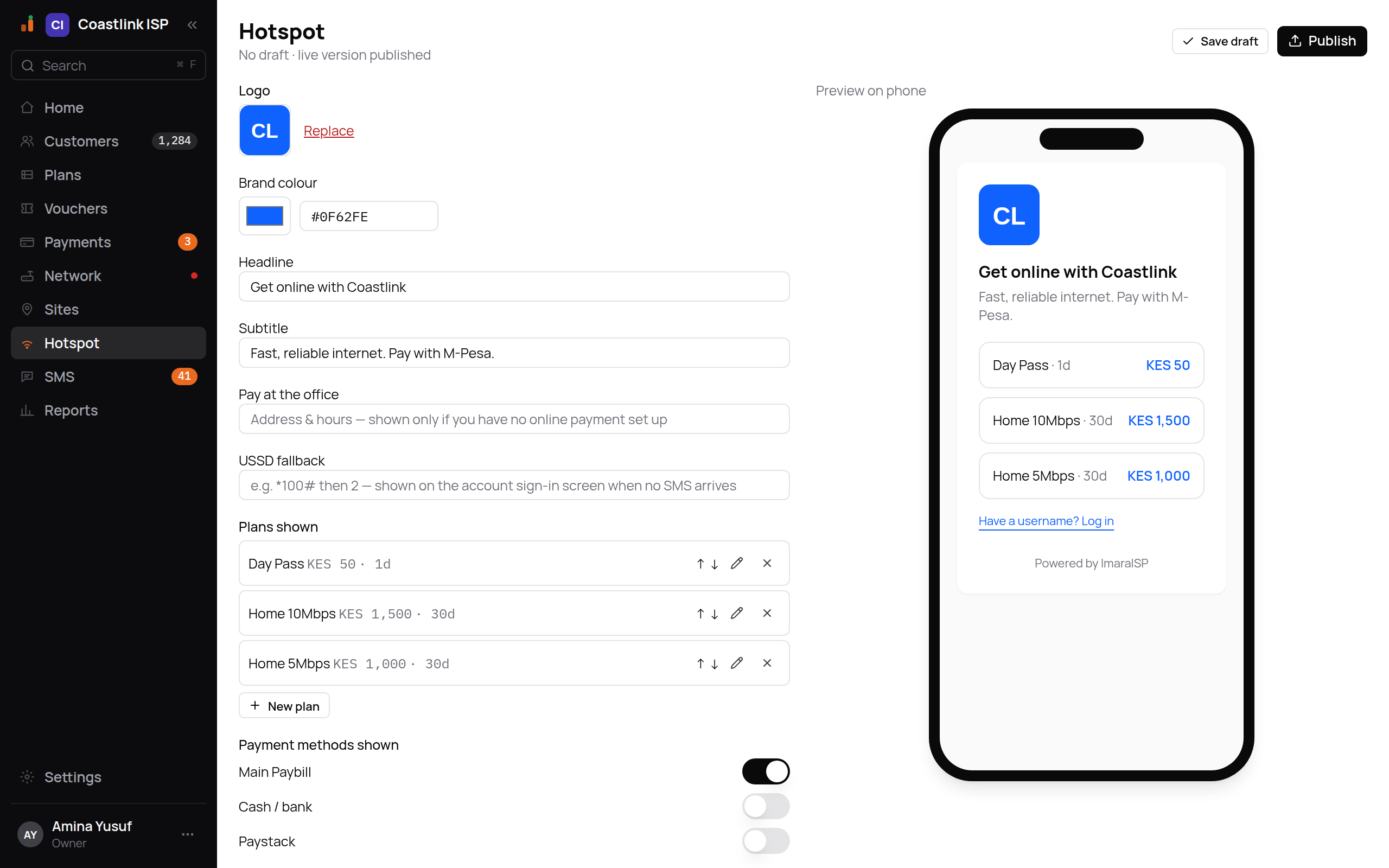
Draft and Publish
The line under the title shows the state of your work: "No draft · live version published" when what subscribers see is what you see, or "Draft saved" once you have unpublished edits. Two buttons:
- Save draft stores your edits without changing what subscribers see. The editor also autosaves about two seconds after you stop typing.
- Publish (the page's one primary action) makes the current draft the live version. It needs the publish permission, so a Support user can edit but not publish.
Subscribers keep seeing the last published version until you click Publish. The portal is cached for about a minute, so a change can take up to 60 seconds to reach a phone.
First-time setup
An ISP with no portal sees "No hotspot portal yet. Customers see this after connecting to your hotspot Wi-Fi, set it up once, then refine it below." The create form asks for a name, a slug (for example nairobi), a support phone and a logo. Everything else starts from sensible defaults you refine afterwards.
The editor
Look
- Logo: upload an image; it is resized in the background. The phone preview shows your file immediately. Replace swaps it.
- Brand colour: a hex value (for example
#0F62FE) with a colour picker. This is your brand, not ImaraISP's, and it drives the buttons and accents on the portal.
The theme is a fixed set of fields. There is no custom code, which is what keeps the portal fast and safe on cheap phones.
Copy
- Headline, for example "Get online with Coastlink".
- Subtitle, for example "Fast, reliable internet. Pay with M-Pesa."
- Pay at the office: "Address & hours, shown only if you have no online payment set up".
- USSD fallback: "e.g. *100# then 2, shown on the account sign-in screen when no SMS arrives".
The editor edits the English copy. The portal also carries Swahili strings, terms and the "Powered by ImaraISP" footer.
Plans shown
The list of hotspot plans offered on the portal, in order, each with its price and duration (for example "Day Pass KES 50 · 1d"). Use the ↑ ↓ arrows to reorder, the pencil to edit, and ✕ to remove a plan from the portal. New plan adds one. Only active plans appear on the portal. Plans themselves are managed under Plans.
Payment methods shown
One toggle per payment provider you have enabled under Settings → Payment providers, for example Main Paybill, Cash / bank and Paystack. Only enabled providers appear; a provider you have not set up cannot be offered.
Portal URL
The public address, https://portal.imaraisp.ke/{slug}. In the example the slug is coastlink. This is the URL the router's login page redirects to.
Extras
| Switch | What it does |
|---|---|
| Voucher codes | Adds "Have a voucher?" to the portal so prepaid codes can be redeemed. See Vouchers |
| Remember this device | "A device that has paid gets straight back on next time, without the portal." |
| Phone login (OTP) | "Lets a subscriber back on with a code sent to their phone, instead of their username. Turning this off closes the login endpoints entirely." |
Phone login sends its code by SMS, so set up an SMS route and provider first (see SMS).
Walled garden
Hostnames a subscriber can reach before logging in, such as your own website or an FAQ. Enter bare hostnames only (for example shop.example.com), up to 20. No wildcards, no paths. Edits go into the draft and publish with everything else.
Preview on phone
The right side shows a live phone-sized preview of the draft: logo, brand colour, headline, subtitle, the plans in order, the "Have a username? Log in" link, and the voucher and phone-login entry points when enabled. It updates as you type.
Putting the portal on a router
Publish the portal
Nothing reaches subscribers until a version is published.
Open the router's Hotspot tab
On Network, open the router and go to Hotspot. Review the Planned changes list, which includes the hotspot server settings and the portal files: "Portal login page", "Portal post-login redirect", "Portal status page", "Portal redirect for intercepted requests" and "Portal error page".
Activate
Activation writes the hotspot configuration to the live router after taking a backup. The login page it installs is a tiny redirect to portal.imaraisp.ke/{slug} that hands the router's login link to the portal. That is all the router stores; the real page is served by ImaraISP.
If the portal files on a router are ever damaged, Repair portal files on the router's Configuration tab re-pushes them ("Only applies if this router's hotspot has already been set up, a config backup is taken first").
What the subscriber does
Join the Wi-Fi, get redirected to the portal, pick a plan, enter a phone number and pay (for example with an M-Pesa prompt in Kenya). When the payment lands the portal receives one-time hotspot credentials and logs the device in automatically. The subscriber never types a username. The flow is described from their side in Captive portal.
Works when ImaraISP is slow
The portal is a small page that still shows your branding and support phone even when it cannot reach ImaraISP, so a subscriber never sees a blank screen.