 ImaraISP
Go-live checklist
The five items Settings watches before your workspace is live, and exactly what turns each one green
Settings → Go-live checklist shows five items with a status of Pending or Done. Nothing here is ticked by hand. Each item is computed from what is actually in your workspace every time the page loads, so the way to turn one green is to go and do the thing. When all five are done a green line appears at the top: All set — you're live.
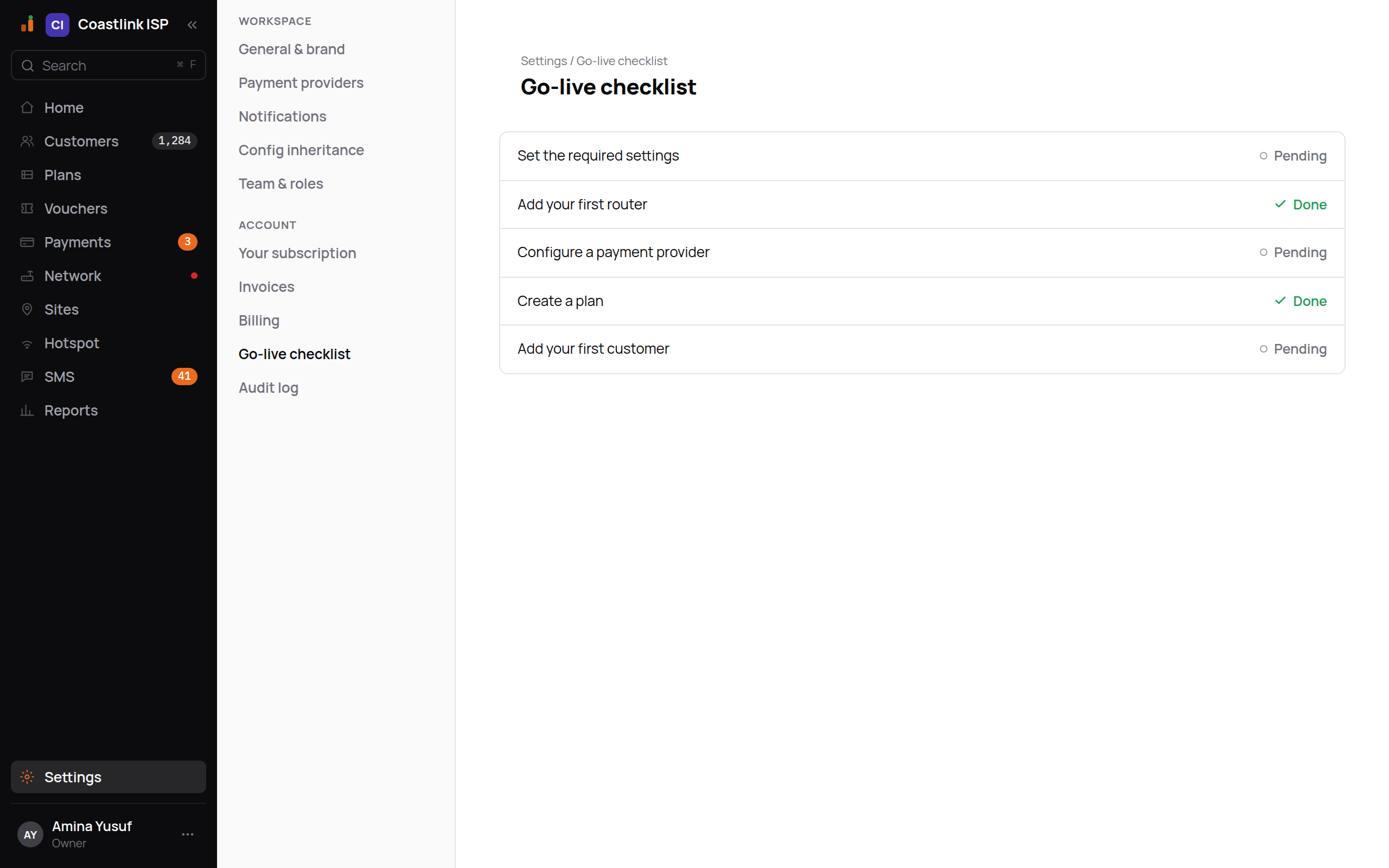
Every role can open the page.
The items
| Item | Turns green when |
|---|---|
| Set the required settings | Every setting your reseller marked as required has a value in your workspace. If nobody marked any, this is Done from the start |
| Add your first router | At least one router exists, even if its checks are still running |
| Configure a payment provider | At least one payment provider is enabled. The Manual (cash / bank) provider every workspace starts with counts |
| Create a plan | At least one plan exists |
| Add your first customer | At least one customer exists |
Resellers can shorten the list
A reseller can choose which of these five items a new ISP sees and which settings count as required. If your list is shorter than five, that is why.
Working through it
Set the required settings
Open Workspace settings and the Config inheritance screen. Use the Set here chip to see what you have set; anything required by your reseller that still reads Default needs an Override. Save, come back, and the item reads Done.
Add your first router
Follow Add a router. The item turns green as soon as Generate script creates the router; it does not wait for the tunnel. The router still has to pass its checks before it can serve anyone, which its own page tracks.
Configure a payment provider
Open Payment providers. Because the Manual provider is enabled by default, this is usually Done already. If someone disabled it and nothing else is enabled, enable a provider.
Create a plan
Open Plans and click New plan. One saved plan is enough.
Add your first customer
From Home click New customer, pick the plan and click Create customer. Copy the shown-once password and collect the first payment on Pay now.
After it is green
"All set — you're live" means the pieces exist, not that every subscriber is online. Before you announce, also confirm:
- The router's Health checks are all OK on its page, including a Run of Test login.
- Each payment provider's callback URL is registered with it and Last callback fills in after a real payment.
- An SMS gateway is saved and Test connection passed, so portal login codes reach phones.
- Your staff have accepted their invites and see only what their roles allow.
If the page cannot load it shows "Couldn't load the checklist" with a retry; that is a connection problem, not a checklist failure.
Common questions
An item went back to Pending. The list is recomputed on every load. If the only router was deleted by support, or the only enabled provider was disabled, the matching item returns to Pending until something replaces it.
The checklist is green but nobody can get online. The checklist proves the pieces exist. Open the router's page and look at Health checks; a failed WireGuard handshake or RADIUS probe is the usual cause. See Add a router for what each red check means.
"Set the required settings" will not turn green. Only settings your reseller marked as required count, and only values set in your own workspace count, not inherited ones. Use the Set here chip on Config inheritance to see exactly what you have set, then override what is missing.
Can I tick an item myself? No. There is no button on the page; each row is a fact about your workspace. If you believe an item should be Done and it is not, the underlying thing is missing or disabled.
Who sees this page? Every role can open it, so a cashier or tech can check progress. Only Owners can act on the settings and provider items; techs can add the router; Ops can create the plan.
Do I need a hotspot? No. The checklist is the same for PPPoE-only and hotspot ISPs. A hotspot router just has extra steps of its own on its router page.