 ImaraISP
Add a router
The Add a MikroTik wizard step by step, the pasted script, secrets shown once, the checks and what red means
Network → Add router opens "Add a MikroTik", tagged RouterOS 7+. A field tech names the router, pastes one generated script into Winbox, and watches the checks go green. The platform never configures a new router by itself; the script you paste does the joining. FieldTech, Ops and Owner can add routers.
Before you go to site
- The router must run RouterOS v7. The field hint says why: "RouterOS v7 required — v7 has native WireGuard; v6 cannot join the tunnel."
- The router needs internet on its WAN port (ether1 with the default configuration) and a roughly correct clock.
- Keep the default configuration. On a new or reset router Winbox offers "Remove Configuration" at first login; choose OK instead. ImaraISP needs the WAN DHCP client on ether1, the default route, the LAN bridge and its NAT. The script does not create them.
- Know the exact interface names for PPPoE and hotspot as Winbox → Interfaces shows them.
The steps
The pills in the header show the path: Details → Paste script → Verify & finish setup. Turning Hotspot on adds Hotspot after Details and Allow hotspot and Activate hotspot after Verify, and the header gains a "+ Hotspot" tag.
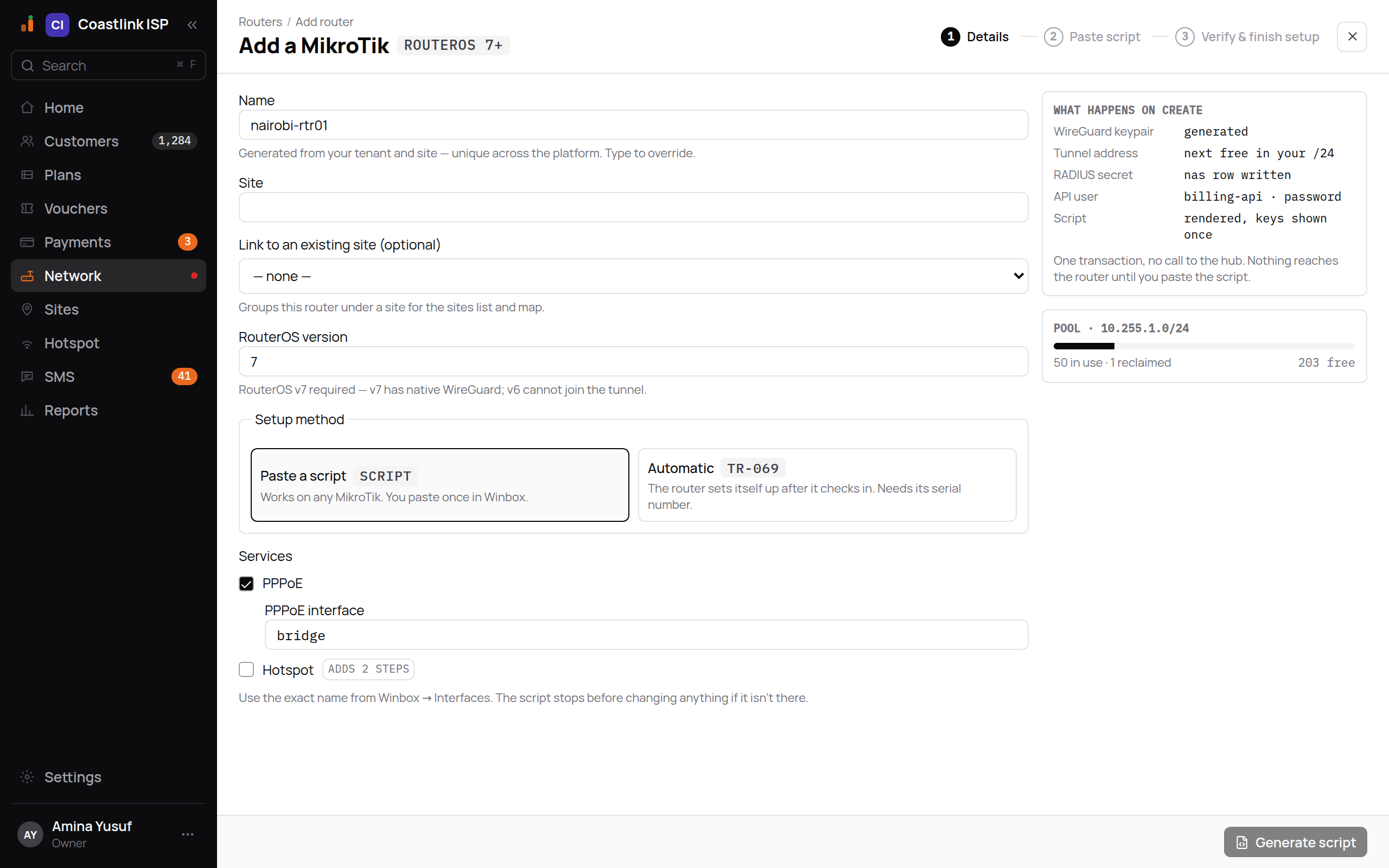
Details
| Field | Meaning |
|---|---|
| Name | "Generated from your tenant and site — unique across the platform. Type to override." A name you type must be unique; "Generate one instead" restores the suggestion |
| Site | Free text, for example "Kayole". If you already have sites, "Link to an existing site (optional)" groups the router for the sites list and map |
| RouterOS version | Type what System → Resources shows. v7 required |
| Setup method | Paste a script: "Works on any MikroTik. You paste once in Winbox." |
| Services | Tick PPPoE and enter the PPPoE interface. Tick Hotspot ("adds 2 steps") and enter the Hotspot interface (required) |
The hotspot interface hint is in red for a reason: "Everything connected to this interface lands behind the captive portal, including your own laptop. Use a dedicated port or bridge, not the one you manage the router from." Interface names are letters, digits, ".", "_" and "-"; "The script stops before changing anything if it isn't there."
The right rail, "What happens on create", lists what the platform does in one step: a WireGuard keypair, the next free tunnel address, a RADIUS secret, the billing-api API user, and the script with its keys shown once.
Click Generate script (or Next: Hotspot if Hotspot is on). Once generated the router exists; you cannot generate again without creating a second router. To change the name or site, finish and edit it from the router page.
Hotspot (only when Hotspot is ticked)
Choose the Portal this router will show (design it on the Hotspot screen first; "No portal yet — create one first." otherwise). Under Network set the Gateway address, DHCP pool range and DNS name ("leave blank — recommended": a blank name redirects to the hotspot's own IP, which always works). Wi-Fi (optional) sets the SSID, channel and width once at activation; the network is open, because a captive portal cannot be reached through a password nobody has. The config is saved as a draft and pushed only after the tunnel verifies.
Paste script
The screen shows "Script for" the router, the badge secrets · shown once, and Copy and Download buttons above the script.
Under "Do this at the router":
- Keep the default configuration (see above).
- Open Winbox, connect to the router, then New Terminal.
- Right-click → Paste the whole script. It runs in under a minute. Nothing to type.
- Safe to paste again if something went wrong: it replaces only what it created.
- With Hotspot on: run
/system device-mode update hotspot=yes, then press the reset button or power-cycle the router within 5 minutes to confirm. RouterOS discards it otherwise. - Wait for green. The checks update by themselves. Needs internet on the router.
The rail "What the script touches" lists wg-billing (the tunnel interface and its peer), /radius (the entry pointing at the platform), billing-api (the API user) and the PPPoE server on your interface. The platform will never edit those four afterwards; do not tidy them up either.
Click I've pasted it — verify.
Verify & finish setup
"Live checks listening…" shows the six checks. They poll on their own.
| Check | What it proves |
|---|---|
| WireGuard handshake | The tunnel is up. Peer live within about 30 seconds of the script running |
| RADIUS reachable | The router can reach RADIUS (Status-Server probe) |
| Router API login | The platform can log in to the router's HTTPS API as billing-api |
| PPPoE server | The PPPoE server exists on the interface you named |
| Hotspot redirect | The portal redirect is in place ("not required" without hotspot) |
| Test login (radtest) | A live test authentication. Click Run; it is on demand only |
Green ✓ is passed. ✗ failed · retrying in red means the probe ran and failed; polling continues, so it flips to ✓ once fixed. timed out · retrying means no answer yet. waiting means a prerequisite is unmet and the detail names it.
The rail "Why the wait" explains: nothing is pushed to the router; the platform picks up the new peer on its next pass ("Peer live ≤ 30 s") and a router is "Marked OFFLINE if handshake > 3 min". Re-pasting the script does not speed this up.
Finish turns on when tunnel and RADIUS pass ("Finish turns on when tunnel + RADIUS pass."). Finish later leaves the router in place and you can return to its page. "Stuck? Make sure the router has internet and the date is roughly right (/system clock print). Call support — same-day engineers."
Allow hotspot and Activate hotspot (only with Hotspot)
"Allow the hotspot on the router" checks device-mode. Allowed lets you continue. Blocked shows the exact command to run on the router, then "Press the reset button, or power-cycle the router, within 5 minutes", then Check again. "This is the one step the platform cannot do for you — RouterOS will not let a hotspot be enabled remotely." "Not reported by this RouterOS" means older firmware with no restriction; carry on.
Activate hotspot shows the planned commands and any blockers found on the live router ("Fix the blockers listed first."). Confirm by typing the router name. It "Takes a backup, applies the commands in order, and rolls back automatically if the router refuses one." Success reads "Hotspot is live on" the router name.
What red means, and what to do
| You see | Likely cause | Do this |
|---|---|---|
| WireGuard handshake never passes | No internet on the router, wrong clock, script not run, or "Remove Configuration" was chosen | Check WAN and /system clock print; paste the script again |
| RADIUS reachable fails with a live handshake | The /radius entry was edited or removed | Paste the script again |
| Router API login fails | HTTPS not up yet, or the billing-api user was changed | "Paste the onboarding script again to enable HTTPS on the router, or check /ip service www-ssl." |
| PPPoE server fails | Interface name does not exist as typed | Fix the name in Winbox or edit the router |
| Hotspot redirect "waiting" | No portal attached yet | Attach one in Hotspot |
After the wizard: the router page
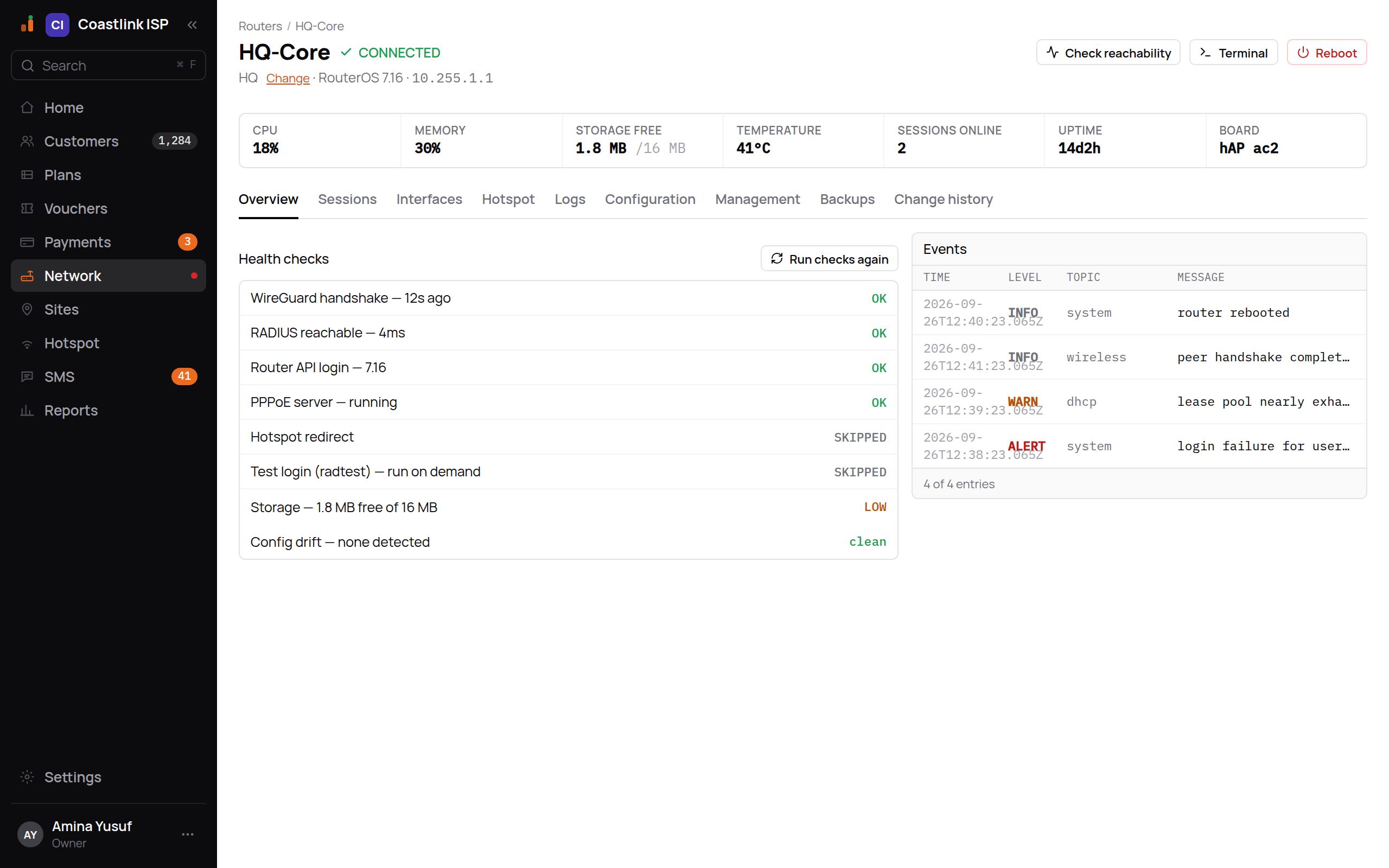
The router's page opens on Overview. The header shows the router's name and status (CONNECTED in green, or OFFLINE), its site with a Change link, the RouterOS version and its tunnel address, and the buttons Check reachability, Terminal and Reboot (the last two are for Owners). Under it a strip of live figures reads CPU, Memory, Storage free, Temperature, Sessions online, Uptime and Board.
The tabs are Overview, Sessions, Interfaces, Hotspot, Logs, Configuration, Management, Backups and Change history. Overview keeps the Health checks with a Run checks again button, and an Events panel with the router's recent log lines (level, topic, message). In the example below Coastlink ISP's HQ-Core router is connected.
| Check | What it shows |
|---|---|
| WireGuard handshake | How long ago the tunnel last handshook, for example "12s ago" |
| RADIUS reachable | The round trip to RADIUS, for example "4ms" |
| Router API login | The RouterOS version the platform logged in to |
| PPPoE server | "running" when the server is up on your interface |
| Hotspot redirect | The portal redirect; SKIPPED on a router without hotspot |
| Test login (radtest) | On demand: SKIPPED until you run it |
| Storage | Free space on the router, for example "1.8 MB free of 16 MB"; LOW when it is nearly full |
| Config drift | Whether the parts the script created still match; "none detected" reads clean |
A router with no handshake shows "Router unreachable — no WireGuard handshake for 14 min. Power? ISP uplink?" A router whose tunnel is up but whose API is down shows "Tunnel up, router API not responding" and the next step. Until every setup step is done, a "steps left before this router serves anybody" list stays on the page: "Router reached the platform", "Platform can manage the router", and for hotspot routers "RouterOS allows a hotspot", "Portal login page is on the router" and "Hotspot activated".
The hotspot login page lives on the platform
The router never hosts the portal. Its stock login.html is replaced by a short redirect to https://portal.imaraisp.ke/{slug}, so the portal you design on the Hotspot screen is what every subscriber sees, on every router.