 ImaraISP
Routers
Watch the fleet, read why a router is down, open one router's health and sessions, and manage configuration profiles
Routers live under Network in the sidebar. The screen has three tabs: Terminals (your MikroTik routers), CPEs and APs (managed subscriber and access-point devices). This page covers Terminals and the router detail. Provisioning has its own page.
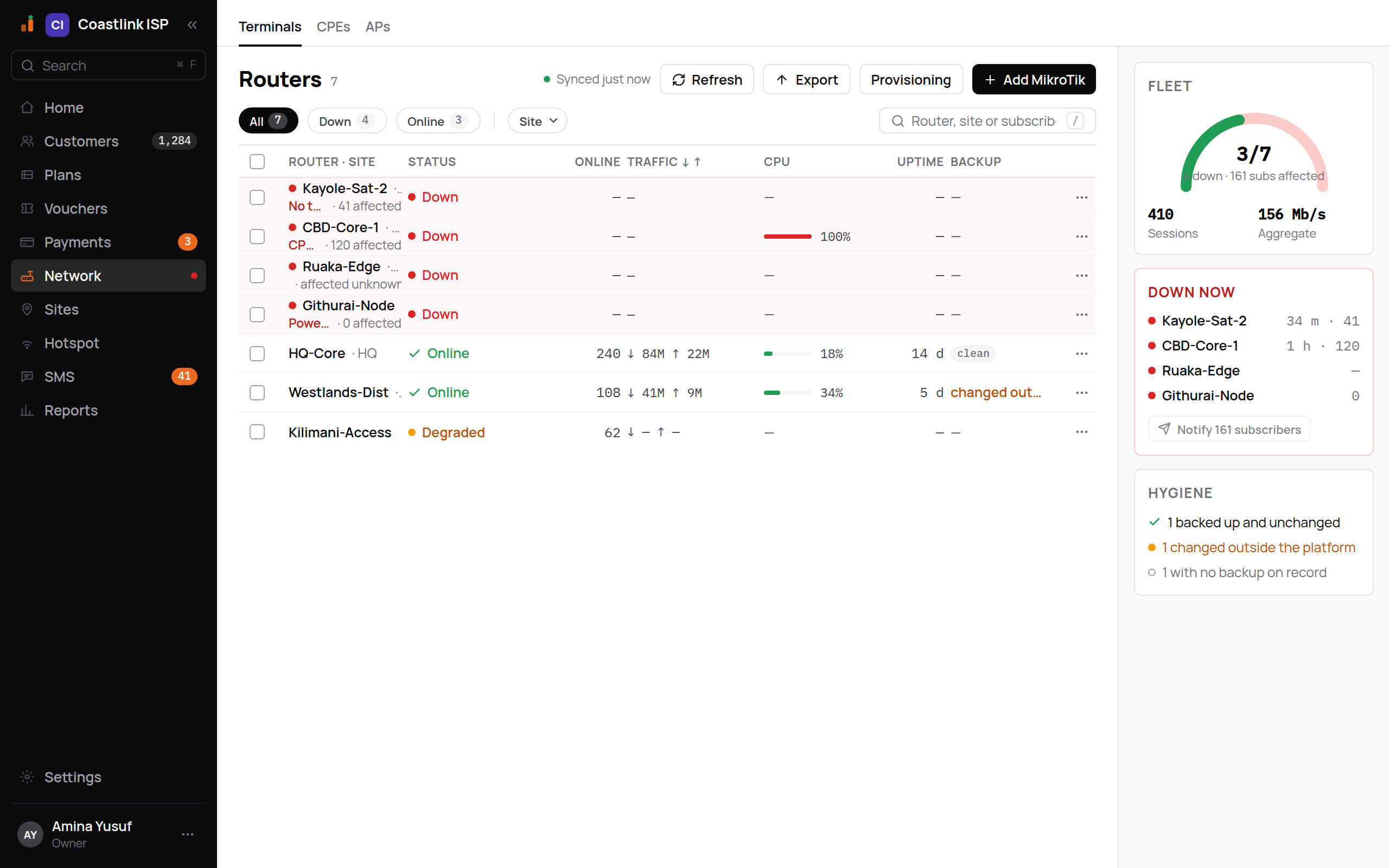
The fleet list
The header shows the router count, a "synced N s ago" indicator, and Refresh, Export, Provisioning and the black Add MikroTik button. Nothing on this screen spends money, so there is no orange.
Filter chips: all, down, online, plus a Site menu. A search box accepts "Router, site or subscriber": typing a subscriber's phone or name finds them across the whole fleet and links to their record.
| Column | Shows |
|---|---|
| Router · site | Name, site, and for a down router the diagnosis line and "N affected" |
| Status | Down, Degraded or Online |
| Online | PPPoE plus hotspot sessions right now |
| Traffic ↓ ↑ | Current download and upload |
| CPU | A small bar plus percentage |
| Uptime | Days since the last reboot |
| Backup | "clean", or a drift marker when the config changed outside ImaraISP |
Down routers are tinted red and sorted first, longest-down at the top. Empty states: "No routers yet. Add your first MikroTik to start onboarding subscribers." and "No routers match. Clear the status or site chips to see the whole fleet."
The right rail shows Fleet (sessions and aggregate traffic), Down now (each down router with how long and how many subscribers) and Hygiene (backup status).
What Online, Degraded and Down mean
Every router keeps a secure tunnel to ImaraISP. The platform checks the tunnel every minute.
- Online (green): the tunnel handshake is fresh and the router's management API answers.
- Degraded (amber, with an "API unreachable" badge): the tunnel is up but the router's API is not responding. Subscribers are usually unaffected; ImaraISP just cannot read the router.
- Down (red): no tunnel handshake for more than 3 minutes. The router is unplugged, has no uplink, or never ran its script.
Diagnosing a down router
The line under the router name tells you where to look first:
| Diagnosis | Meaning | Do this |
|---|---|---|
| Power? ISP uplink? | The router has never handshaken or has gone silent | Call the site. Check power and the upstream link |
| CPU was 100% at 07:40, likely hung, reboot? | CPU was pegged just before it went silent | A power cycle on site |
| Script never ran | The router was added but the onboarding script was never applied | Use Resend script (below) |
| No tunnel handshake, check the router | Was online before, tunnel dropped | Check the site, then the WireGuard interface on the router |
The row's ⋯ menu offers Open router and, where it applies, Resend script.
Resend script
The onboarding script contains the router's tunnel key, RADIUS secret and API password. It is shown once when you add the router. Resend script re-renders the stored script for a router that never connected or whose API login fails. The dialog is titled "Re-paste script for {router}" and carries the badge "secrets · re-viewing is audited". Use Copy or Download, then "Open Winbox on {router}, New Terminal, right-click → Paste."
Every re-view is logged
Viewing a router's script again writes an entry in your audit log with who and when. Do it when a router needs it, not to keep a copy.
Router detail
Click Open router to see one router.
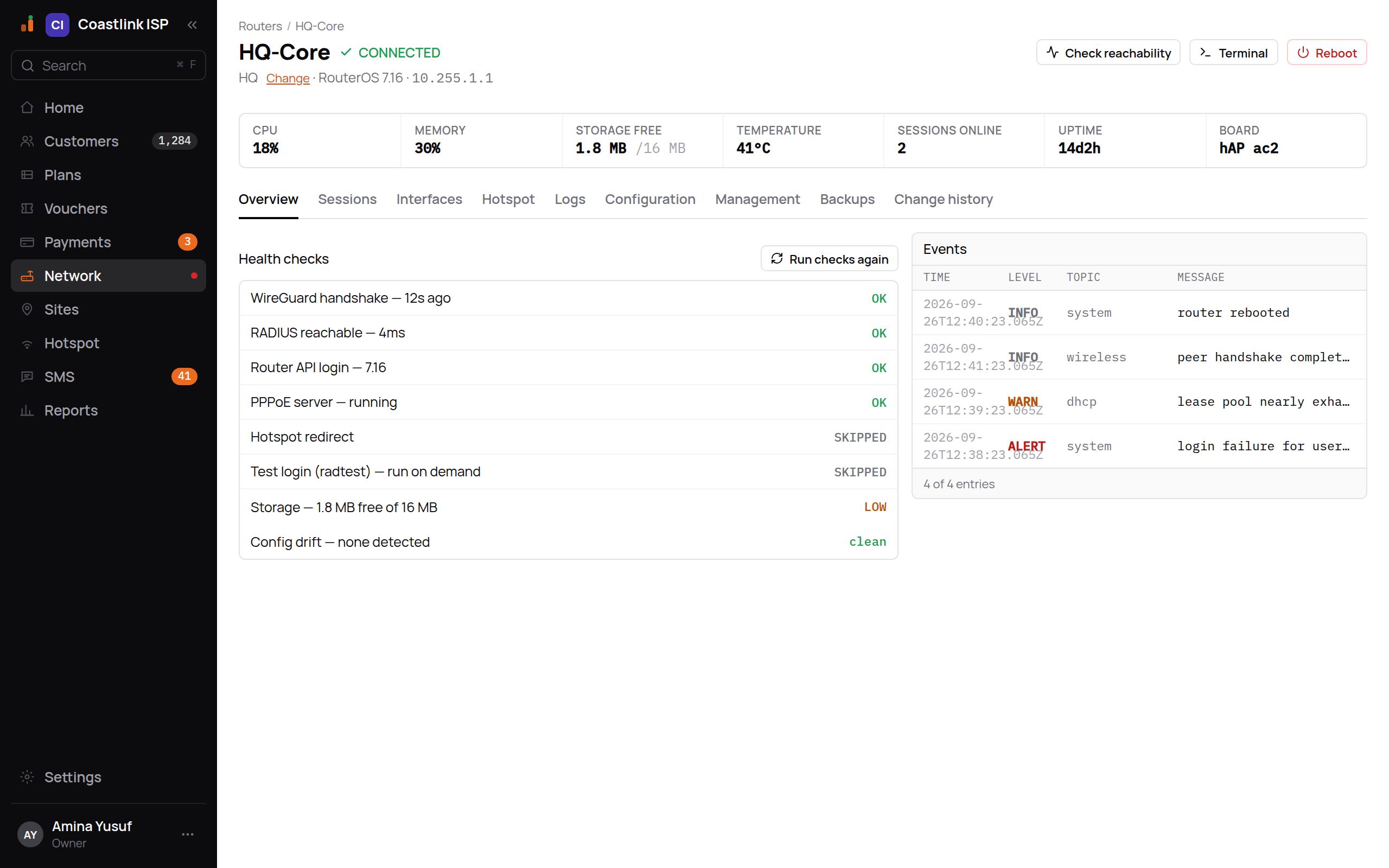
The header shows the name, the status word (CONNECTED, OFFLINE or PENDING), the site (editable with Change) and the RouterOS version. Three actions sit in the header: Check reachability (a live round-trip test), the router console (needs the raw-access permission) and Reboot in red. Reboot asks for typed confirmation and warns: "Every subscriber on this router drops while it restarts (about a minute). A config backup is taken before the reboot."
When the tunnel is down a banner reads "Router unreachable, no WireGuard handshake for 14 min". When the tunnel is up but the API fails, the banner names the next step, for example "The router rejected the billing-api login. Paste the onboarding script again to reset it."
Tabs
- Overview: a vitals row (CPU, Memory, Storage free, Temperature, Sessions online, Uptime, Board), the Health checks list and the recent event log. Checks are WireGuard handshake, RADIUS reachable, Router API login, PPPoE server, Hotspot redirect and Test login. Each shows OK, FAIL or SKIPPED with a detail such as "8s ago" or "not running". Run checks again re-probes after you fix something.
- Sessions: everyone connected through this router (Subscriber, Username, Framed IP, Status). Search by "user, IP or MAC". Empty: "No live sessions on this router."
- Interfaces: each interface with MAC, MTU and byte counters.
- Hotspot: activates the captive portal on this router and pushes the portal files. See Hotspot portal.
- Logs: the router's own log.
- Configuration: Repair portal files, the storage gauge, and the danger zone with Decommission ("This cannot be undone."). Decommissioning removes the router from ImaraISP and from subscriber authentication; it never touches the physical device.
- Management: for managed devices, the device channel: last check-in, Ask to check in now, pending tasks, faults with retry, and a control to re-issue the device's management password (shown once). A router onboarded by pasted script says so here.
- Backups: Backup now.
- Change history: every change with the channel it came through, or "No changes recorded yet."
Keys are shown once
The router detail never displays the tunnel private key, RADIUS secret or API password. The only way to see them again is the audited Resend script on the fleet list.
Provisioning
Provisioning (from the Network header) manages the settings of everything behind your routers: switches, sector radios, customer radios, home routers, hotspot APs and fibre equipment. It has its own step-by-step guide: Network provisioning.
Sites
Sites groups routers by physical location and places them on a map. Assign a router to a site with Change next to the site name in the router header.