 ImaraISP
Pay now
Collect a plan payment with the methods your payment providers offer, such as a phone prompt, a code the customer paid with, or cash, and watch it settle live
Pay now is the screen a cashier sees a hundred times a day. Open it from the orange Pay now button on Customers or on a customer's record, or with P in the search palette. The page is titled Collect payment.
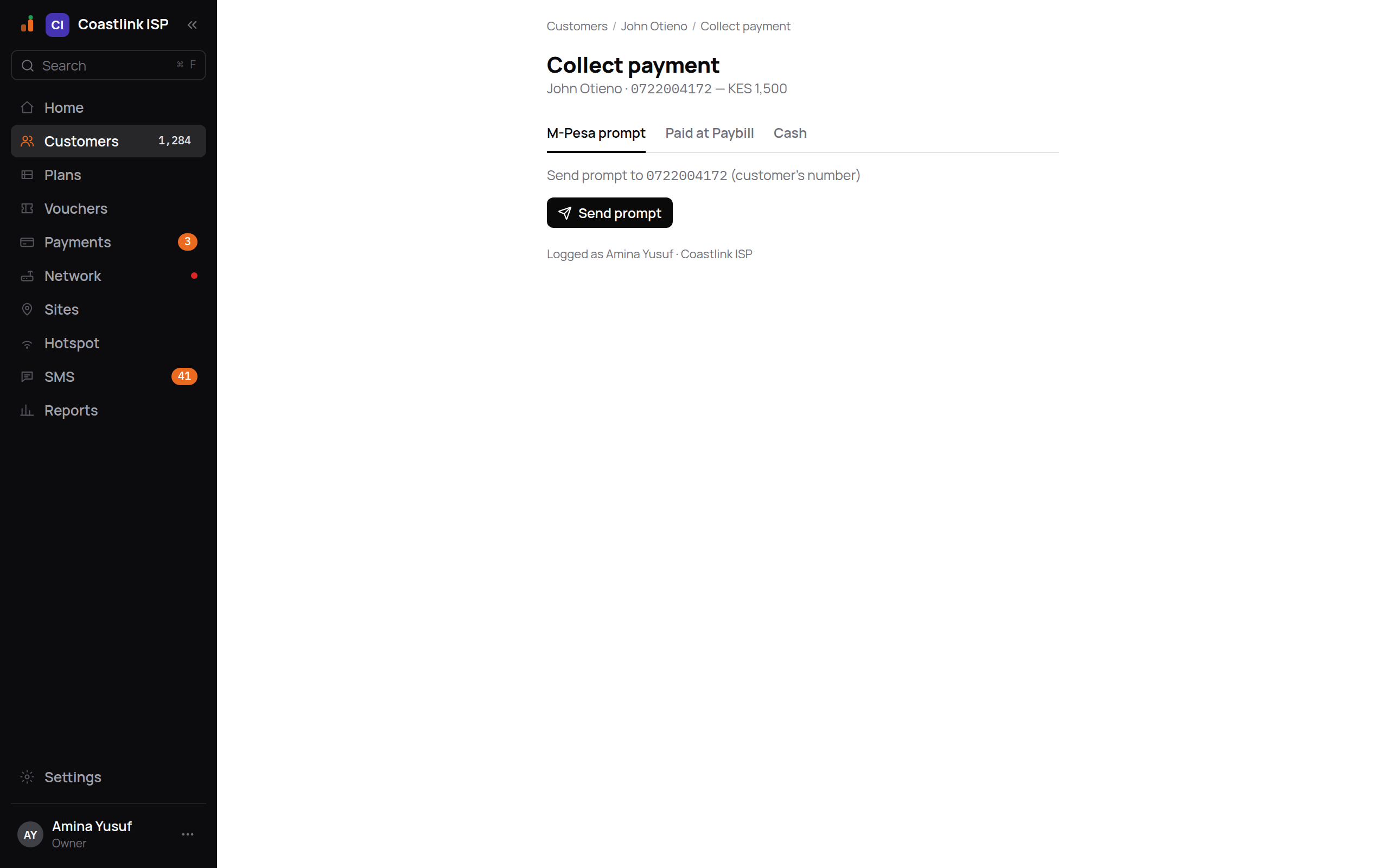
Under the title you see the customer's name, phone and the amount in your currency, for example John Otieno · 0722004172, KES 1,500 for a workspace in Kenya.
The amount
The amount is the price of the customer's current plan, in your workspace's currency. There is no amount field to type into. To charge a different amount, change the plan first (from the customer's record) and come back.
If the customer has no service or no plan price the screen shows "Nothing to collect. This customer has no active service or plan price. Add one before taking a payment."
The tabs follow your payment providers
The tabs come from the payment providers your business has switched on in Settings → Payment providers. Each provider adds the tabs it can do, named in its own words:
| Your provider can… | Tab you see | For example, with M-Pesa in Kenya |
|---|---|---|
| Send a prompt to the customer's phone | Provider prompt | M-Pesa prompt |
| Take money the customer pays in directly (a business number or till) | Paid at place | Paid at Paybill |
| Be settled by a cashier (cash or bank) | the provider's name | Cash |
This page calls them the prompt tab, the Paid at tab and the Cash tab. For example, a Kenyan business with M-Pesa and cash switched on sees M-Pesa prompt, Paid at Paybill and Cash. A business that only takes card payments online (for example Paystack) sees just Cash here, because a card checkout happens on the customer's own device, not at your counter.
The "Paid at" and cash tabs only appear for staff who hold the mark-paid permission (Cashier and above). A Support user sees the prompt tab only.
The prompt tab
Check the number
The tab says "Send prompt to 0722004172 (customer's number)". The prompt goes to the phone on the customer's record.
Click Send prompt
The button changes to Waiting… and stays disabled until the payment settles or expires, so a double click can never send two prompts.
Tell the customer to approve it on their phone
A waiting panel appears: "Prompt sent, waiting for John to enter PIN" and "Expires in 0:48". The countdown ticks every second. The panel also promises what will happen: plan extended, speed restored and a receipt SMS sent.
Watch it settle
Below the countdown are three settle-source chips: STK, IPN and poll #n. Each turns green with a check the moment that source confirms the money. The screen asks the server every 2 seconds.
When it settles, a green panel shows the amount paid and the provider's receipt, for example "✓ Paid KES 1,500" and "M-Pesa RHK9P3QW2 · reconnected". The customer is back online within seconds; nothing else to do.
The settle-source chips answer "how do we know". STK is the phone prompt itself, IPN is your payment provider calling ImaraISP back, and poll is ImaraISP asking the provider. Whichever arrives first wins and the other is ignored, so you never see a double payment.
No prompt on the phone?
The waiting panel offers the Paid at tab: "No prompt on the phone? Resend or switch to Paid at place and enter the provider code." Clicking it takes you to that tab. Tell the customer to pay your business number instead and read you the code from their confirmation message.
The Paid at tab stays usable while a prompt is pending
You can record a code while the prompt is still counting down. Each provider receipt is unique, so the same money cannot post twice even if the prompt later succeeds.
The Paid at tab
The customer already paid your business number and has the confirmation. The tab says "Enter the provider code the customer received". Type the code (for example RHK9P3QW2, an M-Pesa receipt) and click Record payment. The button stays disabled until a code is typed.
The payment is settled at once, the service is extended and the customer is reconnected. If that code was already used, the server rejects it as a duplicate.
Cash
The tab says "Record cash taken at the counter". Click Record cash. Settlement is immediate and the green panel reads "Cash · reconnected".
Cash has no receipt to check against, so Record cash is blocked while a phone prompt for this customer is still outstanding. Wait for the countdown to finish or for the prompt to settle.
At the bottom of the page, "Logged as Amina W. · Coastlink ISP" reminds you that every payment is recorded against your name.
If a provider is not set up
A tab only appears when a provider that can do it is switched on. If none of your providers can collect at the counter, the page says "No way to collect here yet" and points to Settings → Payment providers. The Paid at tab records the code through your cash/bank provider, so Record payment stays disabled until one is switched on. An Owner fixes both under Settings.
When it fails
The prompt has a short life (the countdown). If it runs out, or the customer cancels on the phone, the waiting panel simply disappears and the button re-enables. Nothing was charged. You can send the prompt again, or switch to the Paid at tab or Cash.
What to tell the customer:
| What you see | What happened | What to say |
|---|---|---|
| Countdown reached 0:00, no green panel | The prompt expired unanswered | "The prompt timed out. I'll send it again, please approve it when it appears." |
| Panel disappears before the countdown ends | The customer cancelled or the provider declined | "It was cancelled on the phone. Do you want another prompt, or will you pay the business number?" |
| Customer says they were charged, no green panel | The provider confirmed the charge late, after the row was closed | Do not say "nothing was charged". Ask for the payment code and check the Unmatched queue on Payments |
A failed payment never becomes paid by itself
If your payment provider confirms money on a payment that already expired or failed, ImaraISP does not grant service quietly. The money lands in the Unmatched queue on the Payments screen, and a person matches it to the customer. Money is never discarded and service is never granted without someone deciding.
Late confirmations, missed callbacks and odd account references all end up in the same place. See Payments for the Match step.